In this post we will learn:
What is it used for?
As the name suggests, the rule is used to set product parameters and their values. In the rule, it is possible to set parameters for different groups of queries at once.

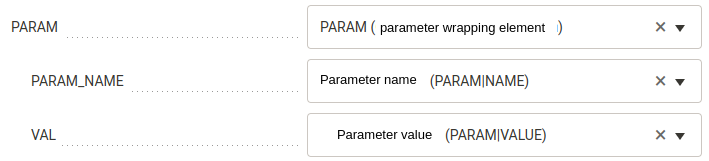
Let’s not confuse product parameters and elements.
How does the Set product parameters rule work?
In this section, we will describe how the rule works, what it can do, and what to watch out for.
Basic principle
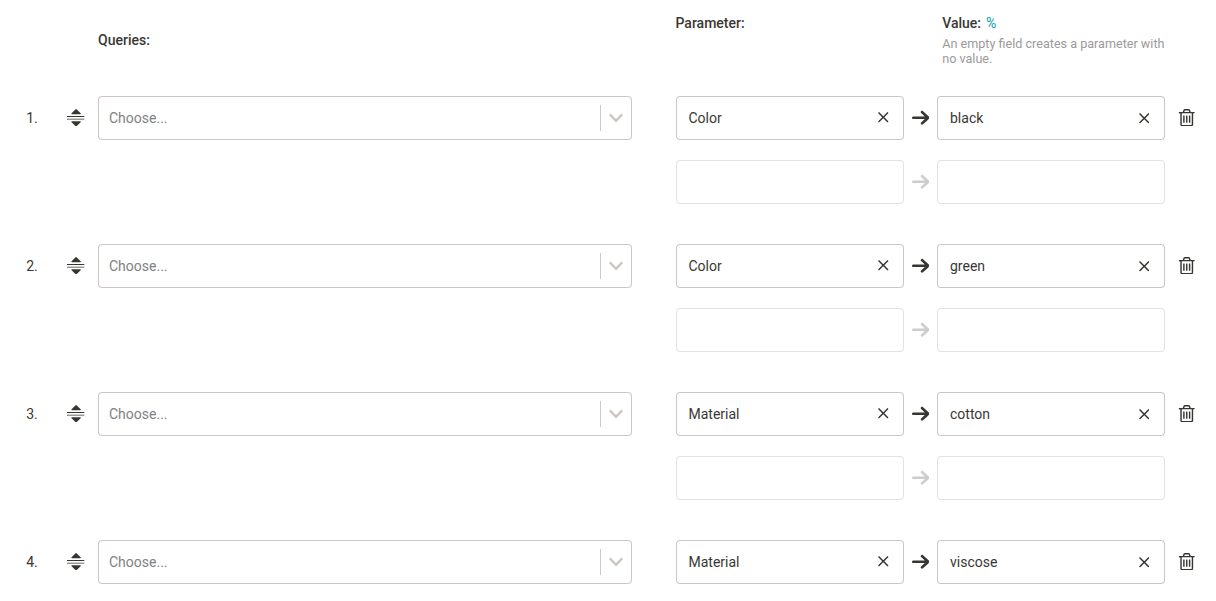
The rule for the given queries sets the product parameters in the output feed identically according to how the parameters and their values are entered and set in the rule form.
Before:
<PARAM>
<PARAM_NAME>Color</PARAM_NAME>
<VAL>black</VAL>
</PARAM>
Rule:
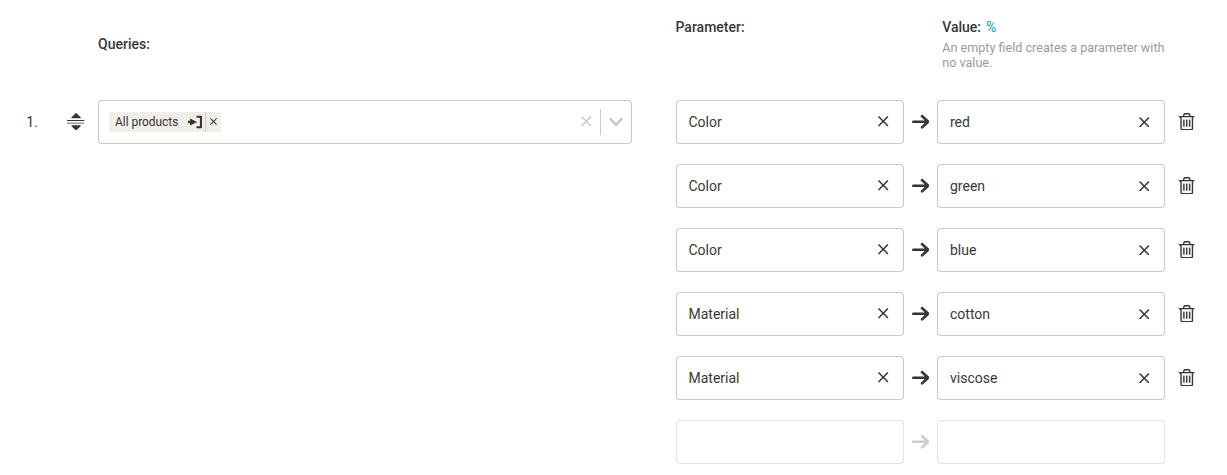
After regeneration:
<PARAM>
<PARAM_NAME>Color</PARAM_NAME>
<VAL>blue</VAL>
</PARAM>
<PARAM>
<PARAM_NAME>Color</PARAM_NAME>
<VAL>green</VAL>
</PARAM>
<PARAM>
<PARAM_NAME>Color</PARAM_NAME>
<VAL>yellow</VAL>
</PARAM>
<PARAM>
<PARAM_NAME>Material</PARAM_NAME>
<VAL>cotton</VAL>
</PARAM>
<PARAM>
<PARAM_NAME>Material</PARAM_NAME>
<VAL>elastane</VAL>
</PARAM>
Input parameters are overwritten
The rule does not care about what parameters and values are in the input feed. From the example above, we can see that in the input feed we had the parameter Color with the value black. In the rule, we then set the values blue and green. After regeneration, the original black was overwritten with blue and green.
The same query with the same parameter on multiple lines sets the parameter multiple times in the output feed
If the same selection with the same parameter is found on 2 (or more) lines, then the given parameter for the given selection is set twice (or more times), i.e. it will be multiple times in the output feed. See the example above. In this case, we will even warn you with a gray exclamation mark icon that this may be a user error.

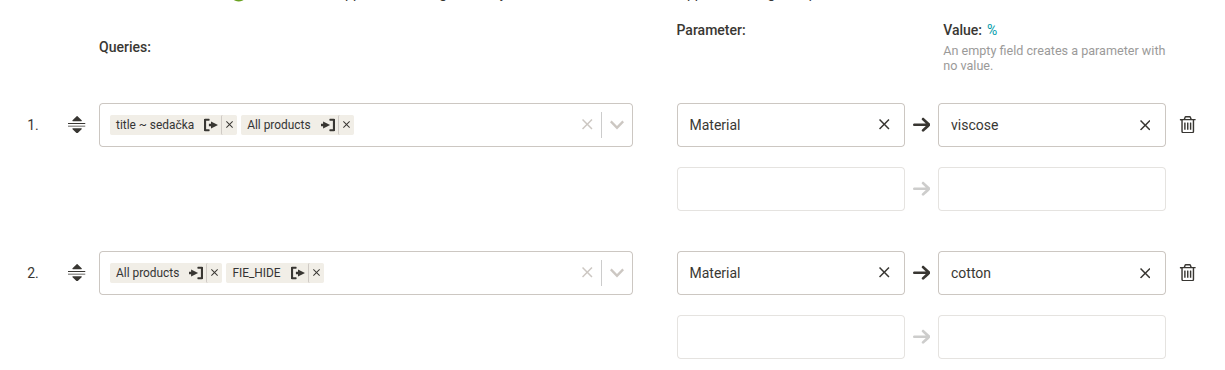
Changes are applied gradually line by line
This behavior can be used, for example, if
- we have different groups of selections, but with the same selection across groups, and we want to have parameters in a certain order in a given selection.
- Or with a value in a row at an earlier position, we want to work further on a row with a later position.
An empty value field creates a parameter without a value
Some formats allow parameters with an empty value:
<PARAM>
<PARAM_NAME>Color</PARAM_NAME>
<VAL></VAL>
</PARAM>
We achieve this in the Set Parameters rule by leaving the value field empty.

The rule is available “only” for projects with an output format that has parameters in the specification
Which makes sense. Furthermore, the rule is available even for projects with custom format on the output, which has mapped parameters in the settings of the given custom format.
What else does the Set product parameters rule form offer?
The rule form offers several functions that will make our work easier:
-
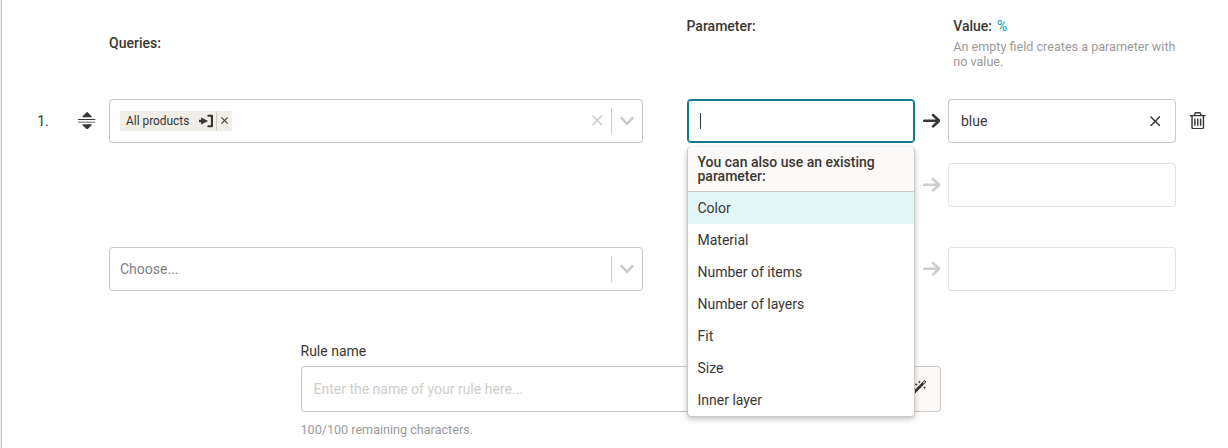
Parameter names are whispered. So if we want to set parameters that already exist in the input feed, we don’t have to write them out manually. Just click on them.
-
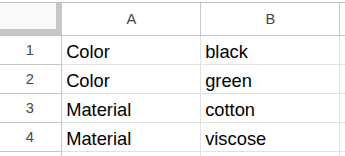
smart insertion works in the form. If we have the parameter names and values listed in the table, we can simply copy them, check the Smart Insert Mode box, and then paste them into the form.
-
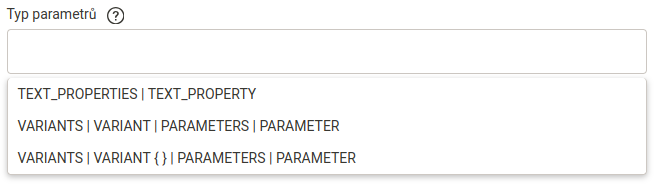
For projects with an output format that has multiple parameter types in the specification, it is necessary to select in the form which type of parameters we want to work with.
In the case of variants, we can also add our own condition to the path in order to target the specific variants we require.

-
Button for download CSV file with filled fields . The file contains 3 columns and the corresponding number of filled rows.
Usage examples
We will show several examples of using the Set product parameters rule on Glami and Shoptet formats.
Glami
Example 1: We will set parameters and values for different selections. The only products of the selection FIE_HIDE will have the Material parameter set twice.
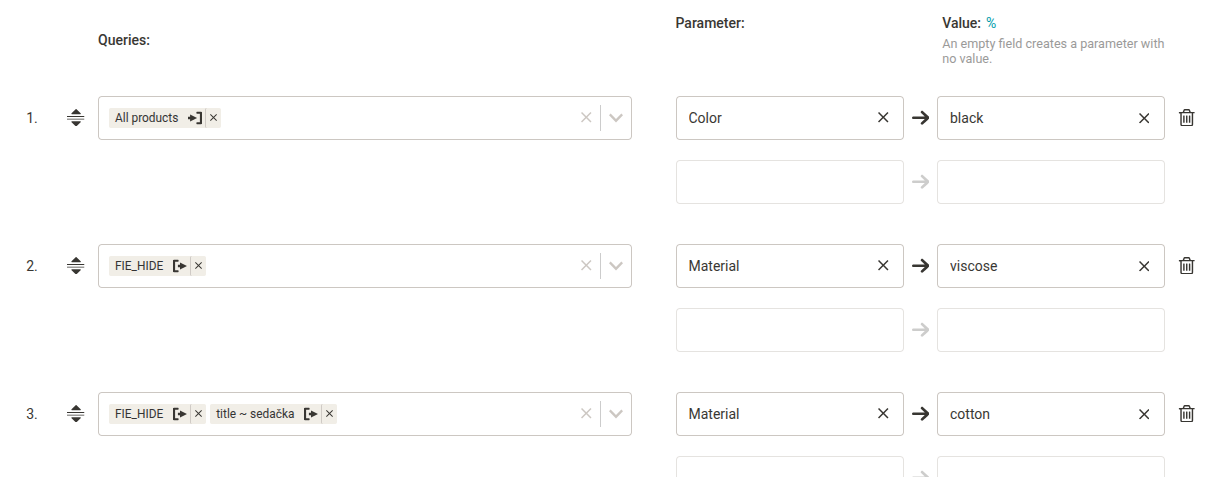
After regeneration, we will see the given parameters and values for the given products in the output feed.
Shoptet
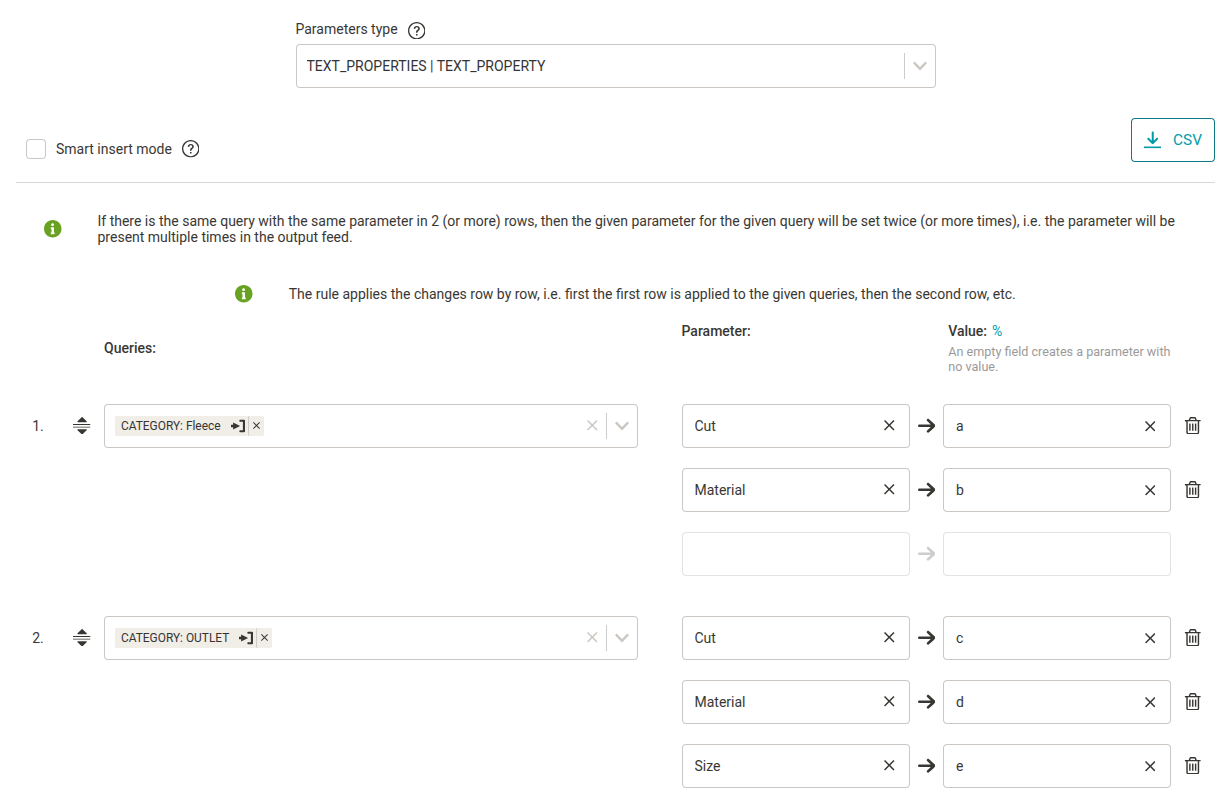
Example 2: We will set parameters and values for different selections. This is the TEXT_PROPERTY parameter type.
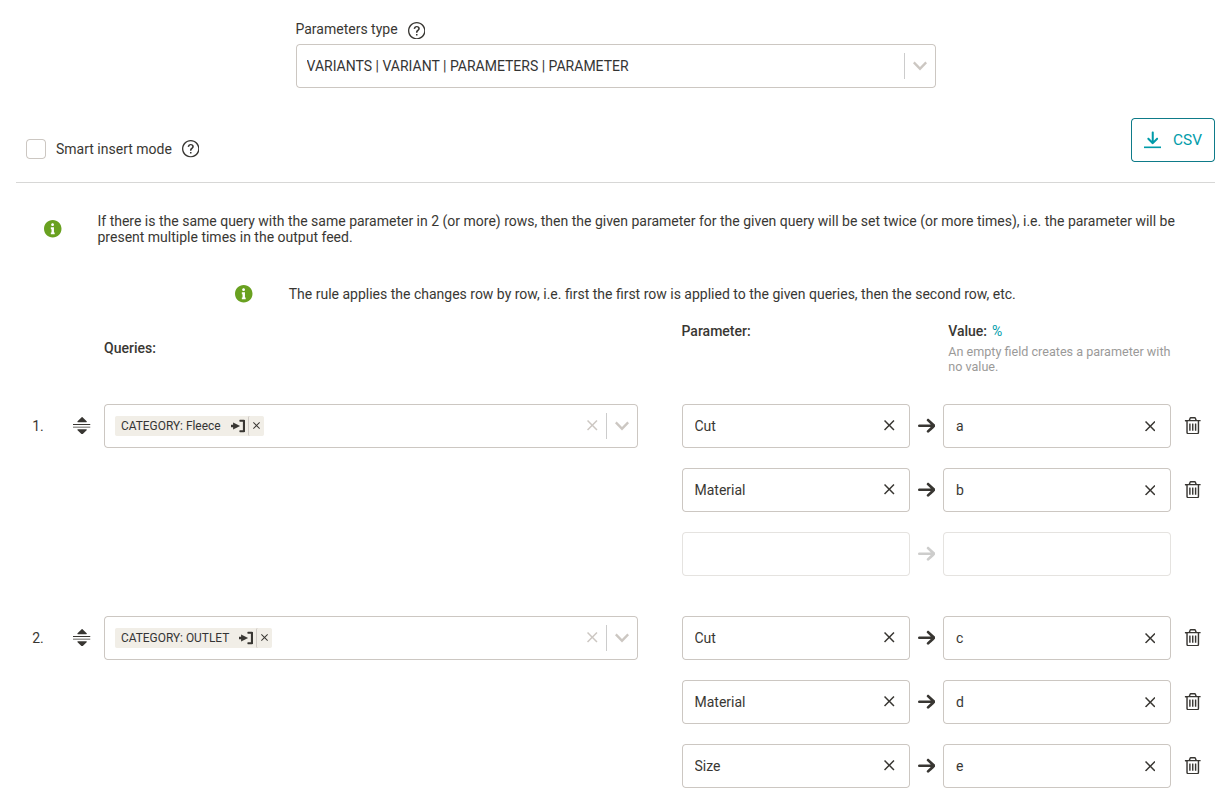
Example 3: We will set parameters and values for all variants.
Example 4: We set parameters and values only for variants with the attribute @id value 46 and 64.

Summary
- What is it used for?
The rule is used to set product parameters and their values. - How does the rule work?
The rule for the given selections sets the product parameters in the output feed identically according to how the parameters and their values are entered and set in the rule form.