In the Mergado Marketplaces application, you can use order management via UNAS. If you run an e-shop on UNAS and sell on Allegro or Kaufland, you can now work with your orders directly in your e-shop administration. Below you will find instructions on how to set up order synchronization with UNAS.
1. Creating a connection to UNAS in Mergado Keychain
To create the connection, you need to fill in the following in Mergado Keychain:
- API key
- Store name (ID)
You can find this information in UNAS in the section Beállítások > Külső kapcsolatok > API kapcsolat. Click the API kulcs létrehozása button and create an API key for Mergado. To enable this integration, Mergado Marketplaces requires access to the following operations:
- getOrder
- setOrder
- getOrderStatus
- setOrderStatus
- getMethod
After saving, copy the API key and enter it together with the store name into Mergado Keychain:

2. Currency settings in UNAS
If you sell via Mergado Marketplaces on multiple markets, you need to enable foreign currencies in UNAS in the section Beállítások > Pénznemek, Árkijelzés > Pénznemek. Add all currencies for the countries where you sell via Mergado Marketplaces.

3. Activating UNAS in Mergado Marketplaces
Once you have successfully created the connection in Mergado Keychain and prepared the currencies, you can activate orders in Mergado Marketplaces in the section Orders > Activation. Select UNAS and save the changes. For order synchronization to work correctly, orders must be activated for at least one marketplace.
4. Additional settings in Mergado Marketplaces
Mapping shipping and payment methods
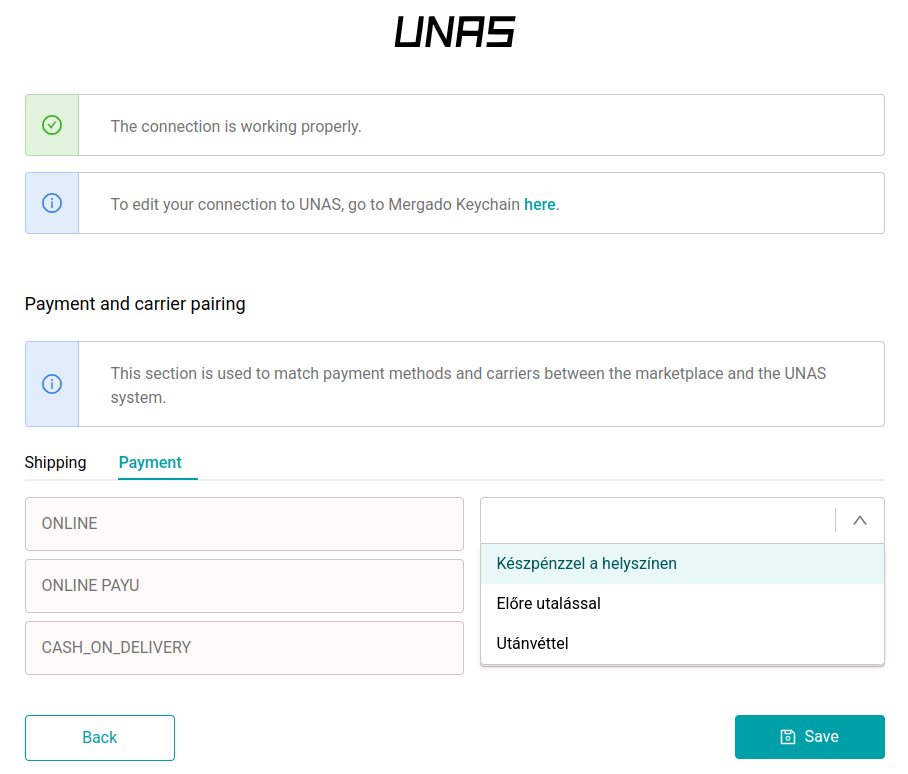
After activating orders, you can map shipping and payment methods from the marketplaces to your UNAS values in the Connections section. In this section, shipping and payment method values are loaded dynamically based on incoming orders. It is therefore a good idea to check this section regularly and map any new values that may appear.
If you do not map shipping and payment methods, we will send them to UNAS in the format in which we receive them from the marketplace.
VAT rates
To create an order in UNAS, it is mandatory to specify the price excluding VAT for each order item. You can fill in the VAT rate in the settings of individual campaigns for Allegro and Kaufland. If no VAT rate is specified for an offer, the standard rate for the given country will be used to calculate the price excluding VAT.
Status mapping between Mergado Marketplaces and UNAS
- Not sent
 Waiting for processing (Feldolgozásra vár)
 - Processing Confirmed (Visszaigazolva)
- Sent Delivery (Kiszállítás)
- Cancelled if you do not have this status available in UNAS, our application will create its own status ‘Cancelled’