If you want to use order synchronization for Shopify, you first need to create a Shopify connection in Mergado Keychain.
If you already have a connection from Mergado Keychain to Mergado via API using a “custom app” in the Shopify admin, you only need to adjust the list of permissions for that app in Shopify (see below).
This guide strictly follows the official Shopify documentation and the current user interface for creating apps using the Shopify Developer Dashboard.
Official resources:
You are creating a custom API app for a single specific e-shop. The app does not need to be published in the Shopify App Store.
1. Creating an app in Shopify
For the Mergado Marketplaces API to access your Shopify account, you need to create an app with the required permissions.
a) Open the Shopify Developer Dashboard
You can access the Shopify Developer Dashboard in two ways:
Option A: Direct access
- Open https://dev.shopify.com/
- Log in using your Shopify account
- In the left menu, open the Apps section
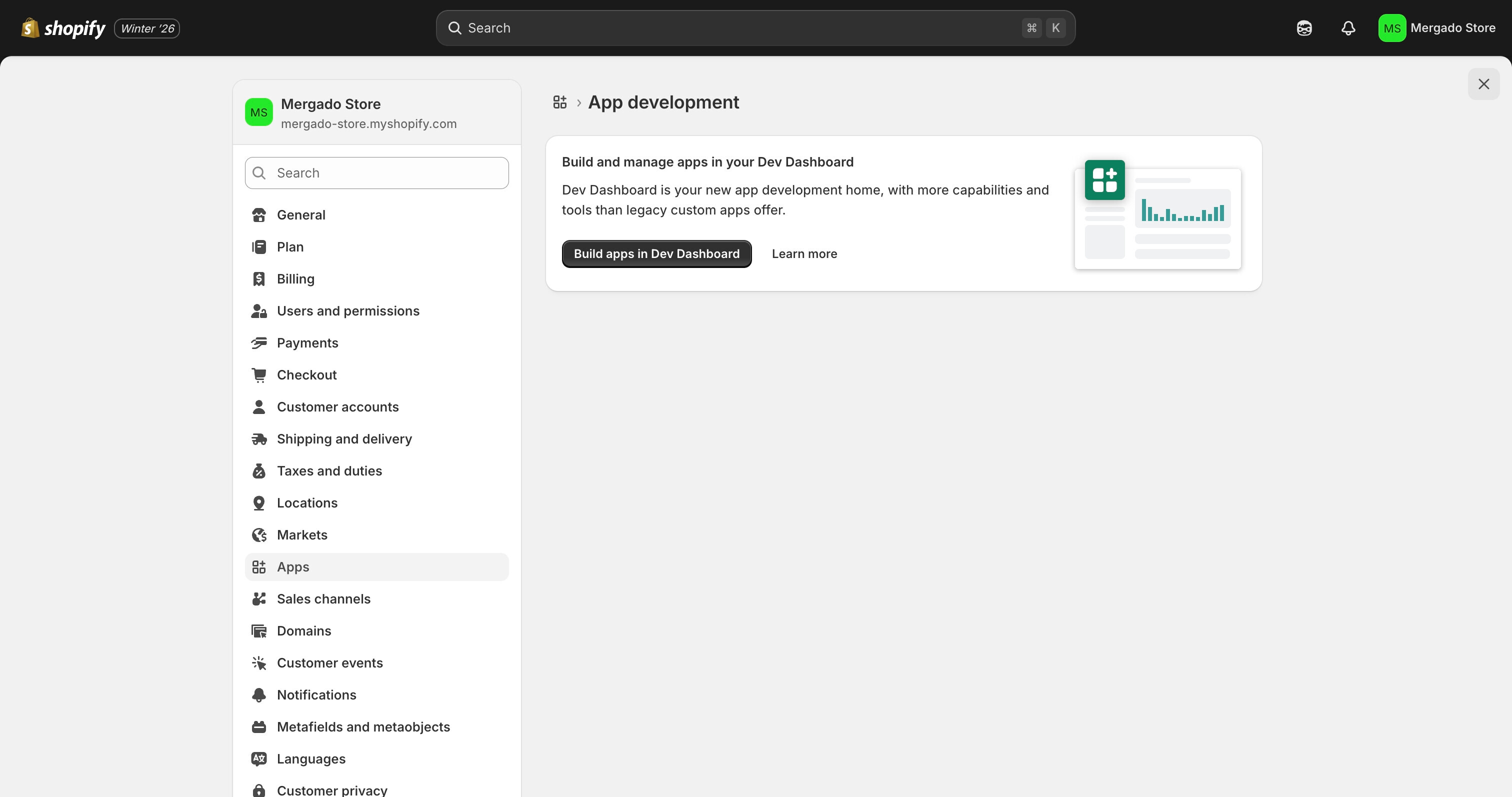
Option B: Via Shopify admin
- Open the Shopify admin of your e-shop
- Go to Settings → Apps
- Click Develop apps
- Click Build apps in Dev Dashboard
b) Create a new app
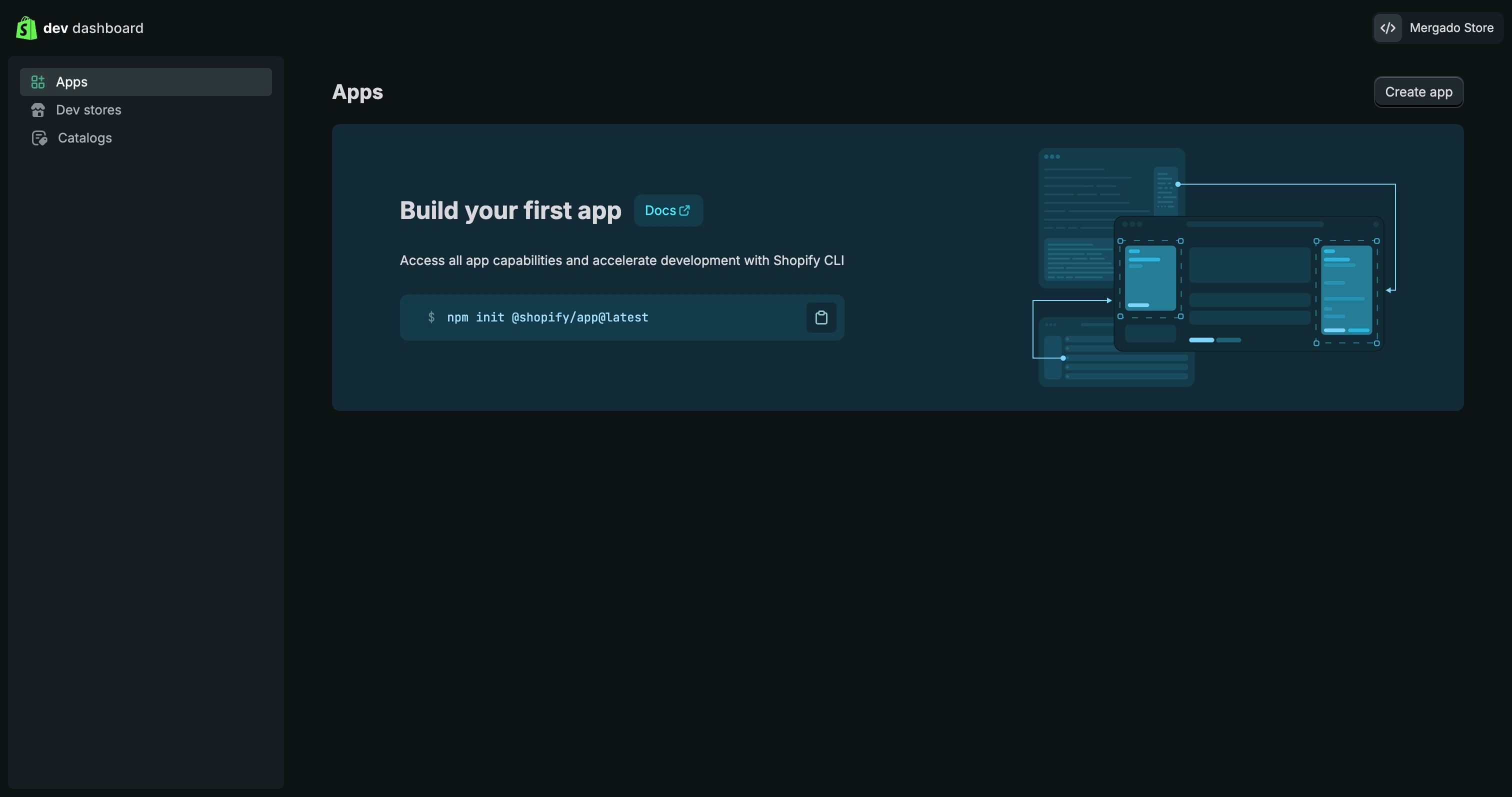
- Make sure you are in the Apps section
- Click Create app
- Choose Start from Dev Dashboard
- Enter an app name (e.g.
Mergado integration) - Click Create
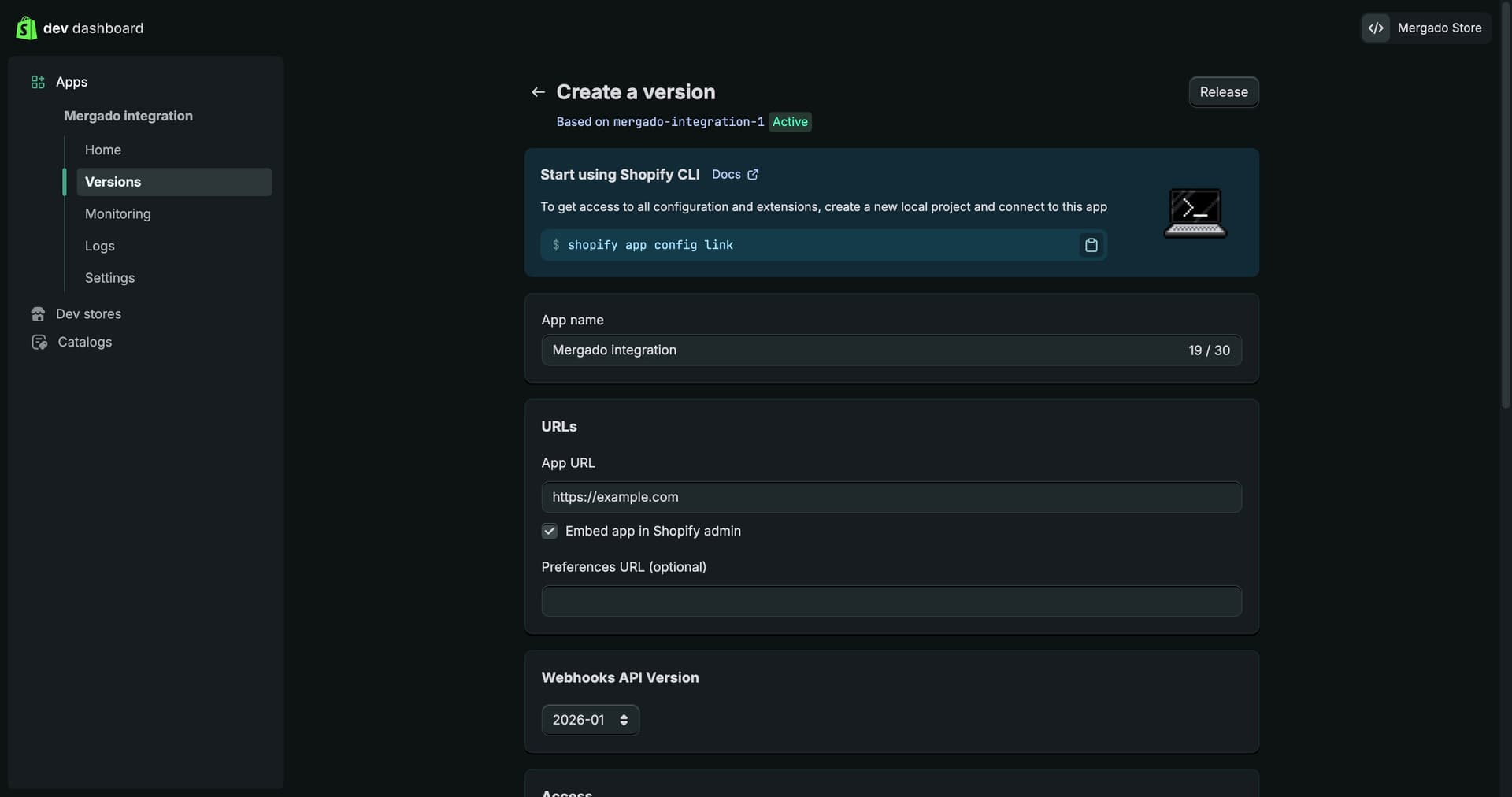
After creating the app, you will be redirected to the Versions tab.
c) Create an app version and set permissions (scopes)
Each app must have at least one version in order to be installed in an e-shop.
d) Set access permissions
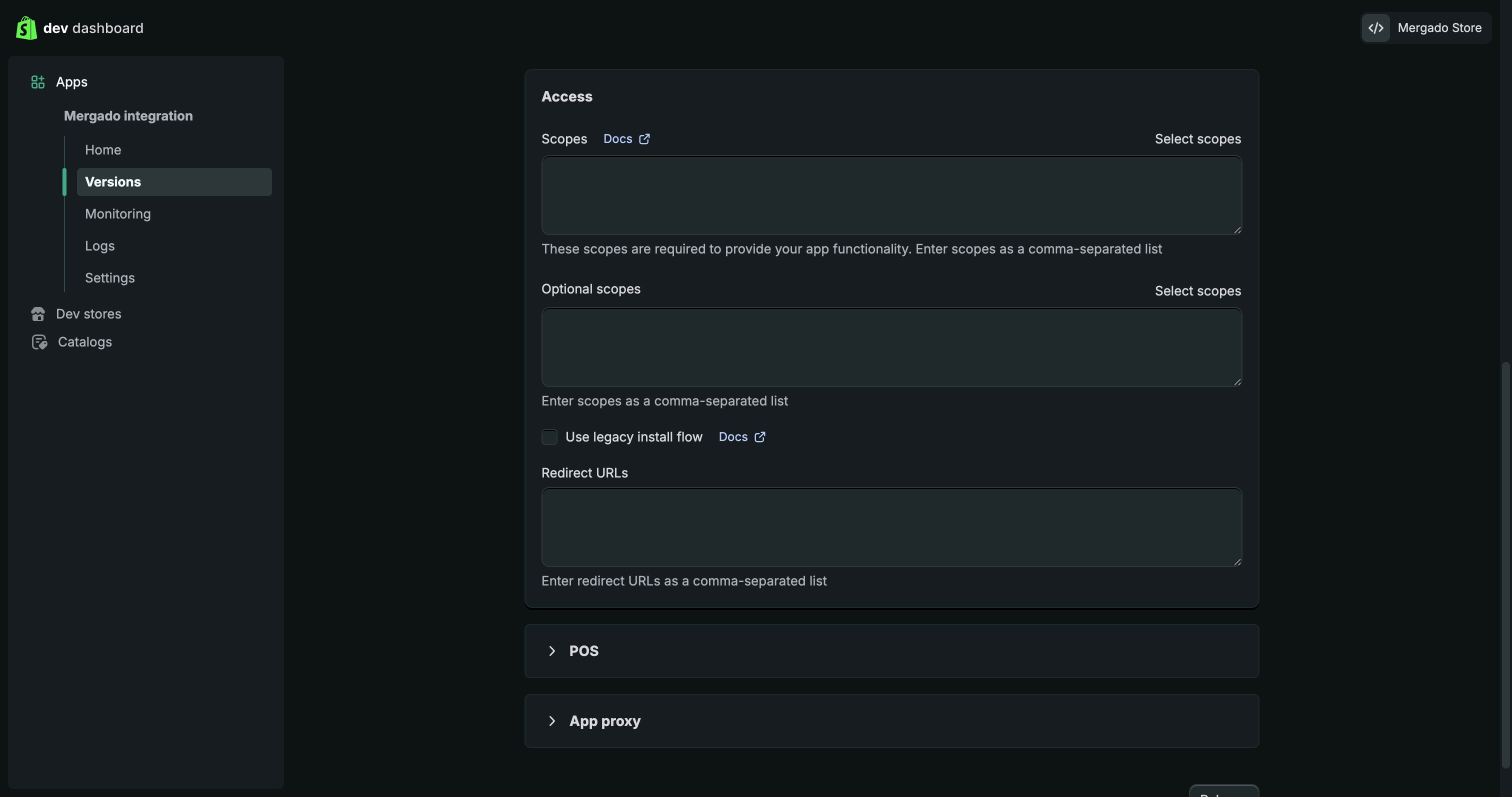
- In the Access section, click Select scopes
- In the modal window, search for and check the following:
Required permissions for Mergado Marketplaces:
read_customers+write_customerswrite_orders+read_ordersread_productsread_shipping+write_shippingwrite_order_edits+read_order_edits
And if you also want to import products into Mergado via the API, add:
write_productsread_productsread_markets
- Confirm by clicking Done
e) Release (publish) the version
- Scroll down the page
- Click Release
- In the confirmation dialog, you can leave the version name empty
- Confirm by clicking Release
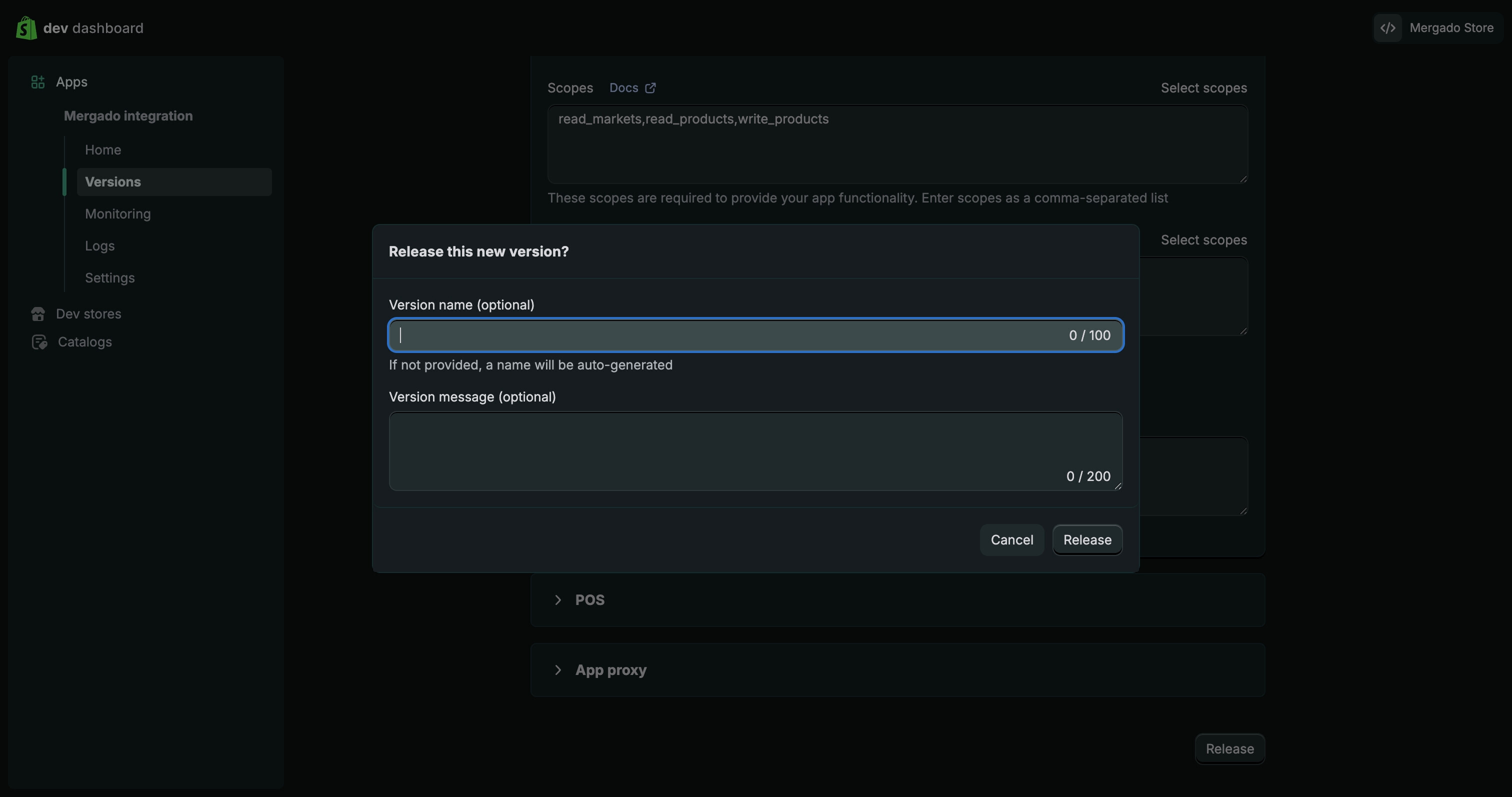
The app version is now published and ready for installation.
f) Install the app in the e-shop
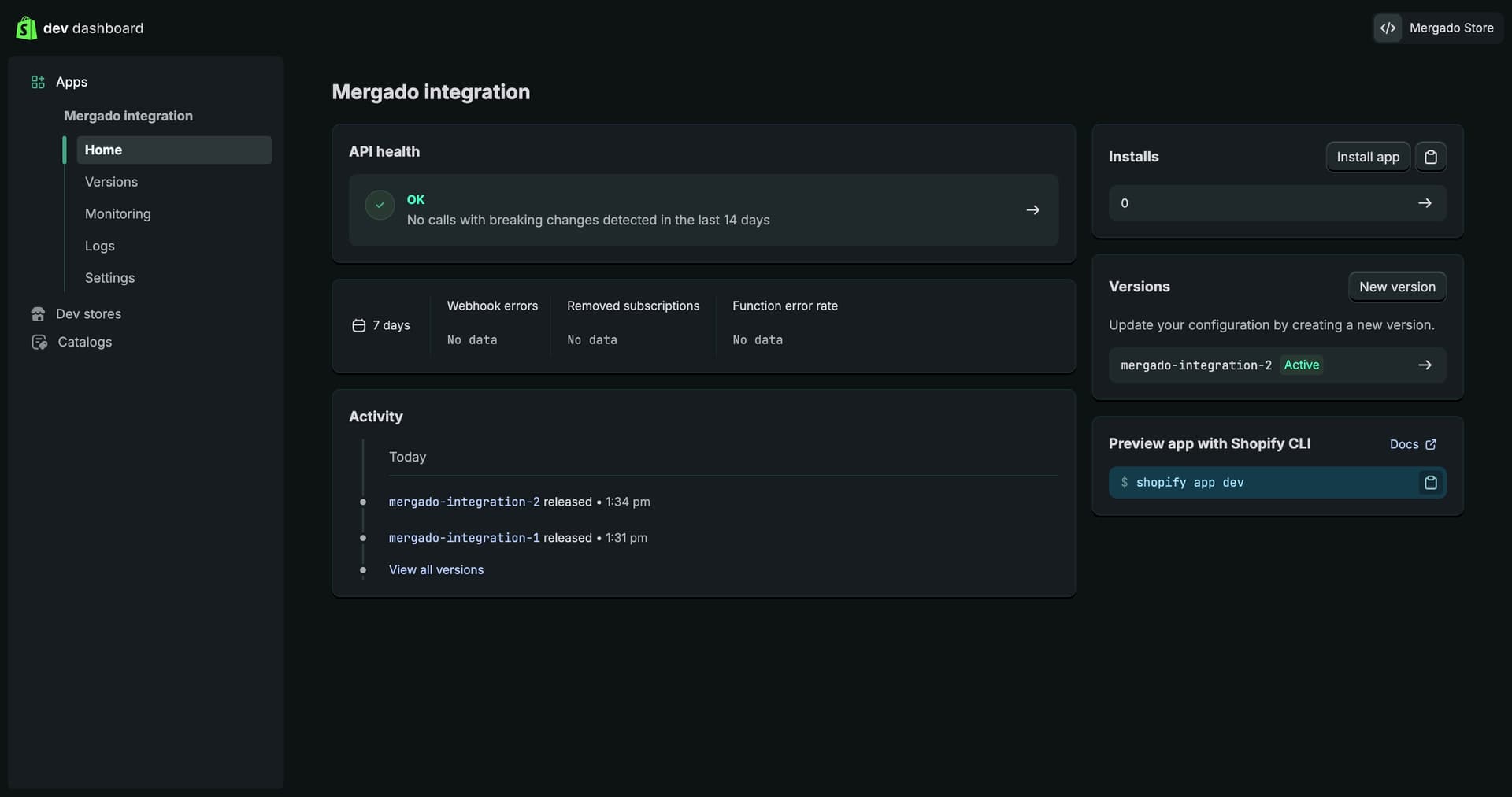
- In the left menu, open Home
- In the top right, click Install app
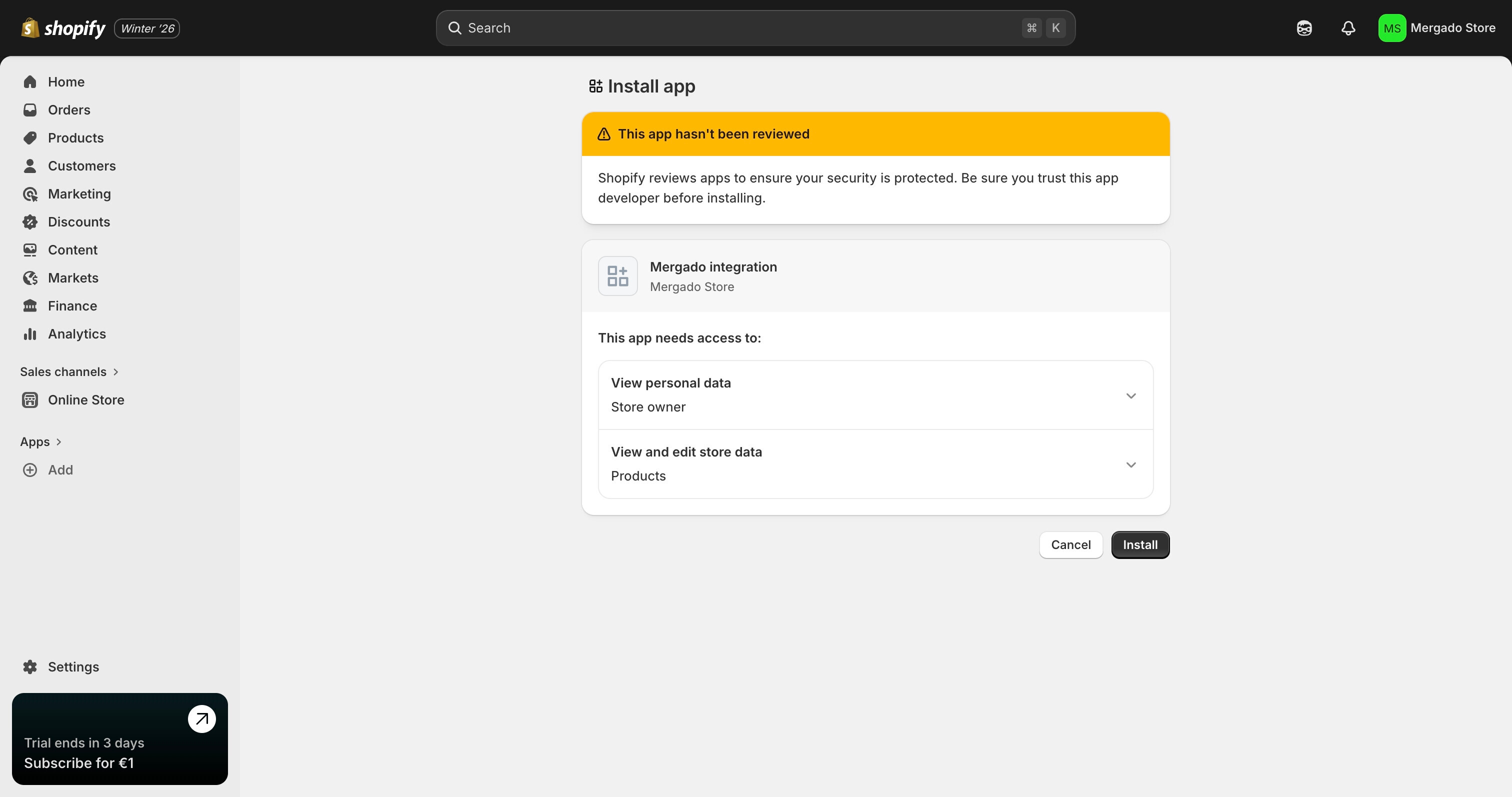
- Select the Shopify e-shop you want to connect with Mergado
- You will be redirected to the Shopify admin
- Confirm the installation by clicking Install
The app is now installed in the e-shop.
2. Connecting Shopify in Mergado Keychain
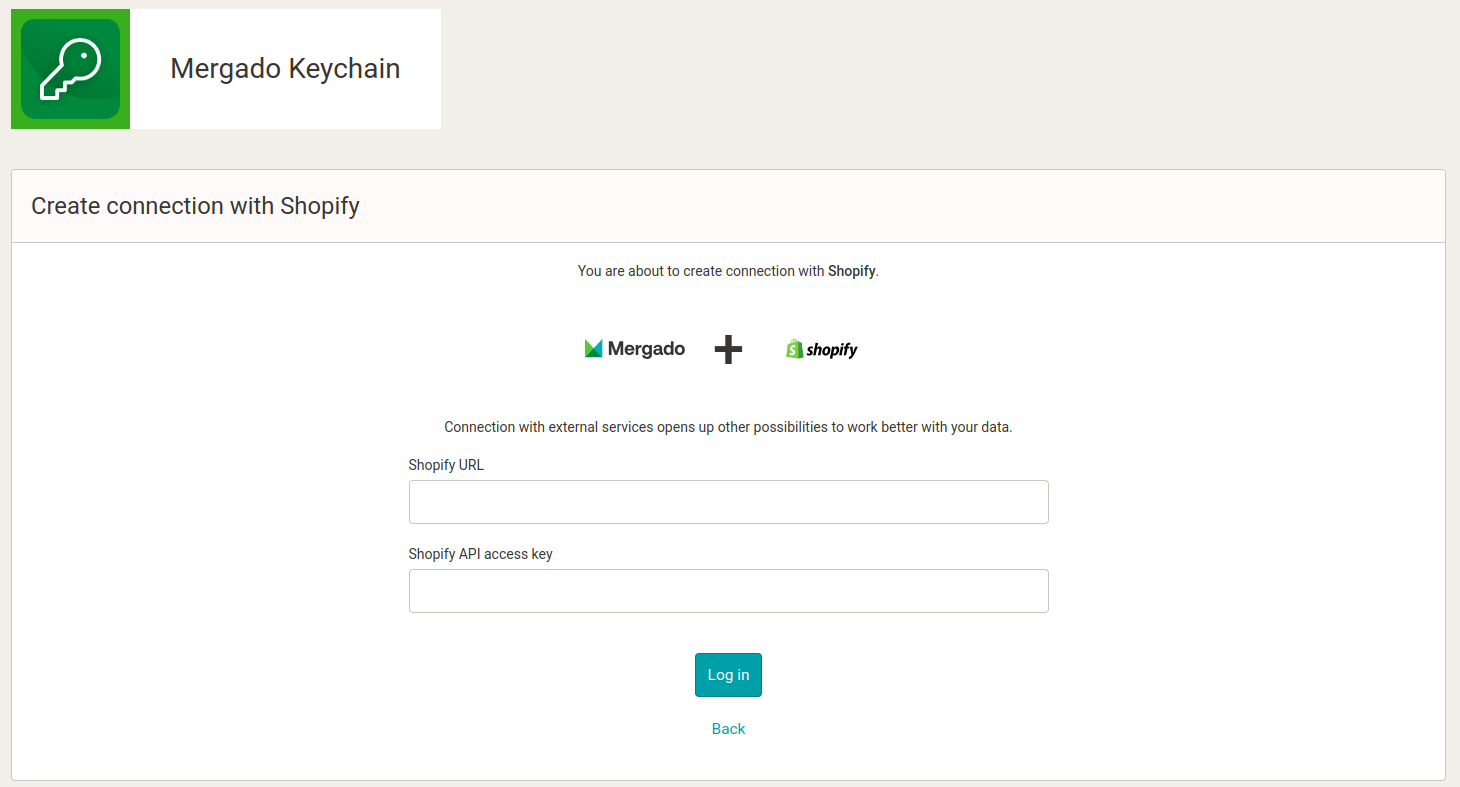
To connect Shopify in Mergado Keychain, you need:
- Shopify URL:
- Open the Shopify admin of the connected e-shop
- In the left menu, open Home
- In the Domains section, copy the e-shop URL
- Example:
your-store.myshopify.com
- Shopify API access key:
- Return to the Shopify Developer Dashboard
- Open your app
- Go to Settings
- In the Credentials section, copy the Secret value and paste it into Mergado Keychain
3. Activating orders in Mergado Marketplaces
Go to Orders > Activation in Mergado Marketplaces, click the Shopify icon and save your changes. The synchronization can be paused anytime on the activation page. Orders are synchronized every 5 minutes.
The order management system will not sync past orders. So you don’t need to worry about your system being flooded with all previous orders when you enable the connection.
That’s it!  From now on, orders will be transferred regularly between your marketplaces and Shopify.