Mergado Marketplaces – 61 – Shopify integration for order synchronization and the ability to edit listed product cards
2025-11-18T13:00:00Z
Just in time for the peak season, we’re bringing you two major updates. Not only have we added another e-commerce platform for order synchronization, but we’ve also introduced the ability to edit your successfully listed product cards afterwards 
The most important and user-visible changes include:
 Order synchronization for Shopify
 Ability to edit listed product cards
 Extension of certain notifications to Mergado Messages (specifically “Drop in active offers” and “Errors in order synchronization”)
 Improved responsiveness of Mergado Marketplaces
 Several smaller fixes and improvements
 Added validation for empty elements in campaign creation and settings

More about selected changes:
Order synchronization for Shopify
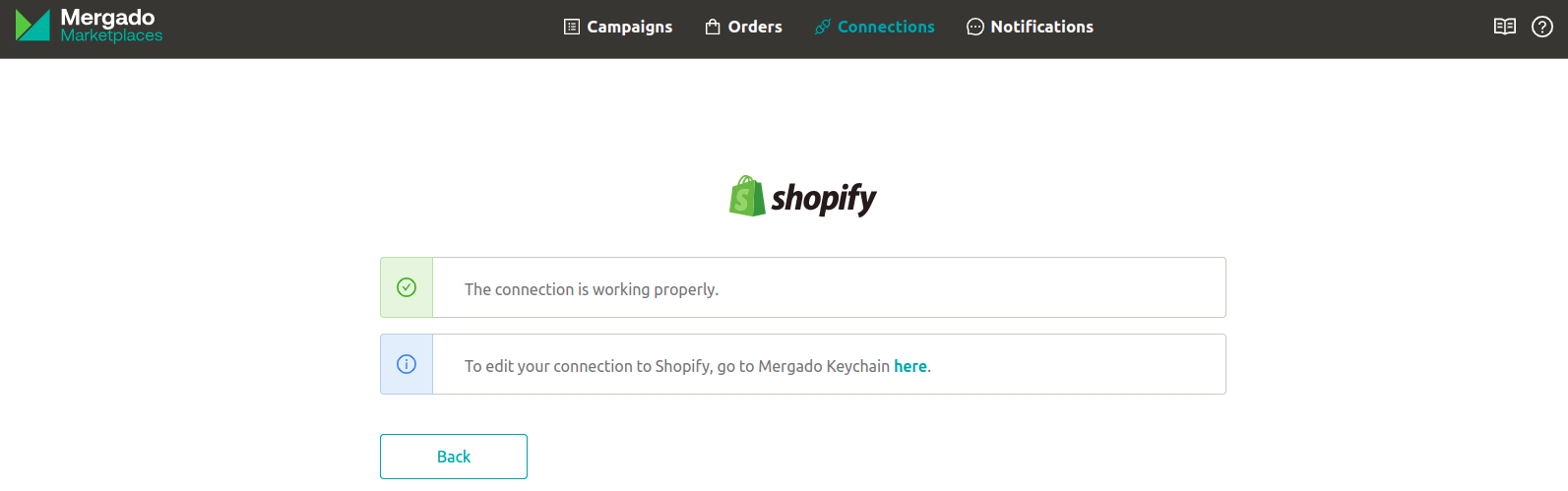
If your e-shop runs on Shopify, you can now enable synchronization of orders between marketplaces and your e-commerce platform. Once connected and activated, orders from Allegro or Kaufland are automatically transferred to Shopify every 5 minutes. When you update an order in your shop (e.g., mark it as shipped), the status is synchronized back to the marketplace.
A detailed guide on how to create the Shopify connection and activate order sync is available here.
Ability to edit listed product cards
Have you successfully listed your product cards, only to realize that one of the parameters was filled in incorrectly? Or do you simply want to add more optional parameters to your product cards? You can now do all of this directly in Mergado Marketplaces 
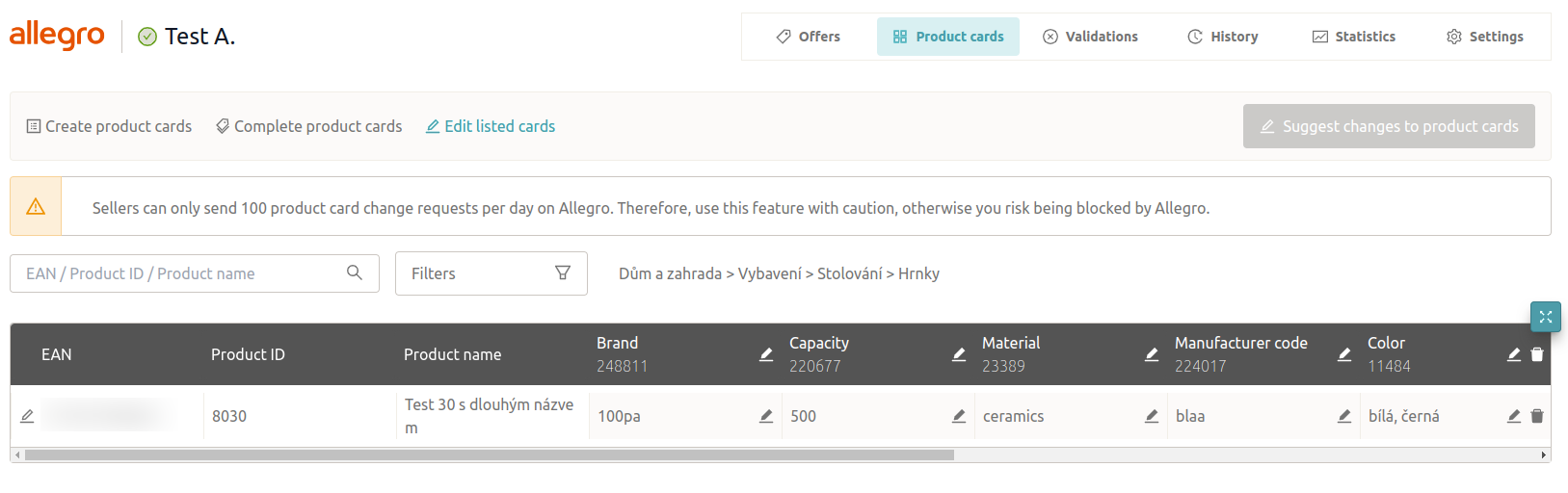
In the new “Edit listed cards” section, all your successfully created product cards will gradually appear. Products are divided into categories just like in the product card creation section. After making at least one change, the “Suggest changes to product cards” button becomes available. For both Allegro and Kaufland, only a proposal for a product card change is sent, and it is up to the marketplace whether they accept or reject it.
For Allegro, after clicking “Suggest changes to product cards”, a window appears where you can choose whether you want Allegro to inform you about the result of the change request (the result will be sent to the email associated with your Allegro account). For Kaufland, you need to check the result directly in the Seller Portal.
A seller can send only 100 product card change proposals per day on Allegro. Use this functionality wisely—otherwise Allegro may block your account. Kaufland has no such limitation.
If you encounter any issues or have suggestions for improvements, feel free to contact Mergado support at mergado@mergado.com.