In the Mergado Marketplaces extension, you can use order management via Upgates. If you run an e-shop on Upgates and sell on Allegro or Kaufland, you can now manage your orders directly in your e-shop administration. Below you will find a step-by-step guide on how to set up order synchronization with Upgates.
1. Activating the add-on in Upgates
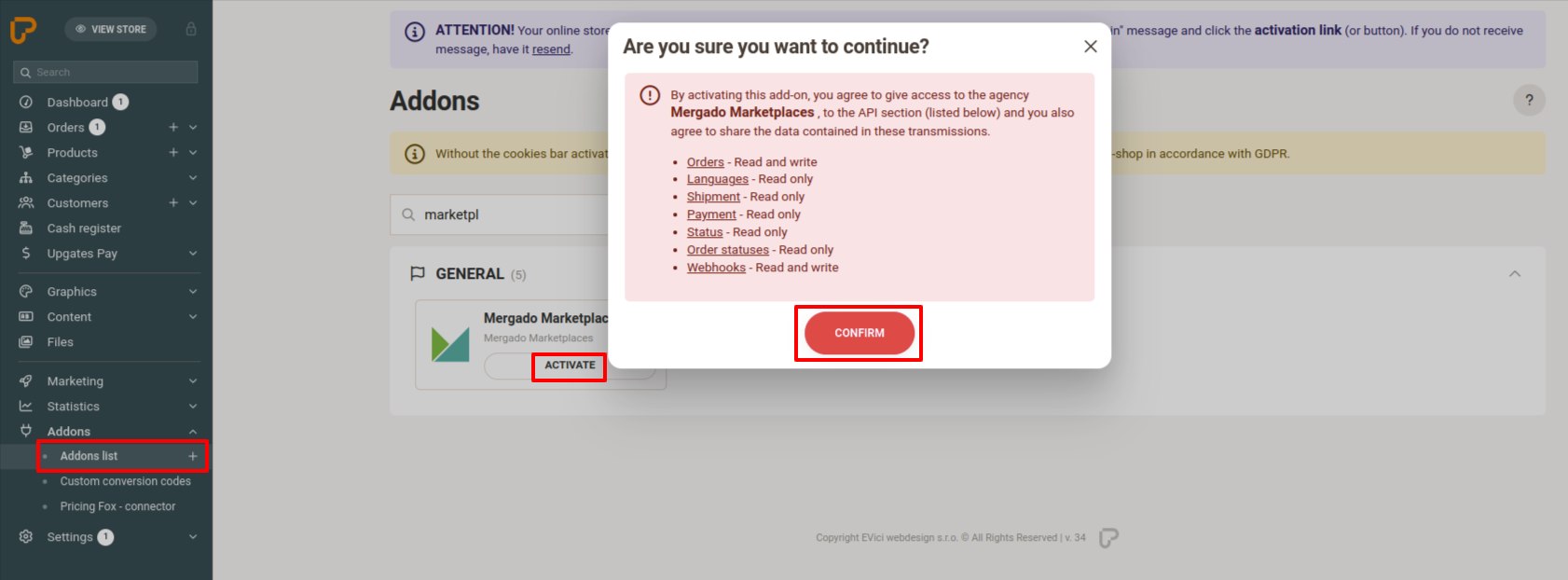
The first step is to activate our official add-on in your Upgates administration. In Upgates, go to Addons > Addons list and search for Mergado Marketplaces. After clicking Activate, a notification will appear with an overview of all permissions required by our add-on for order synchronization. Click Confirm.
2. Creating the connection in Mergado Marketplaces
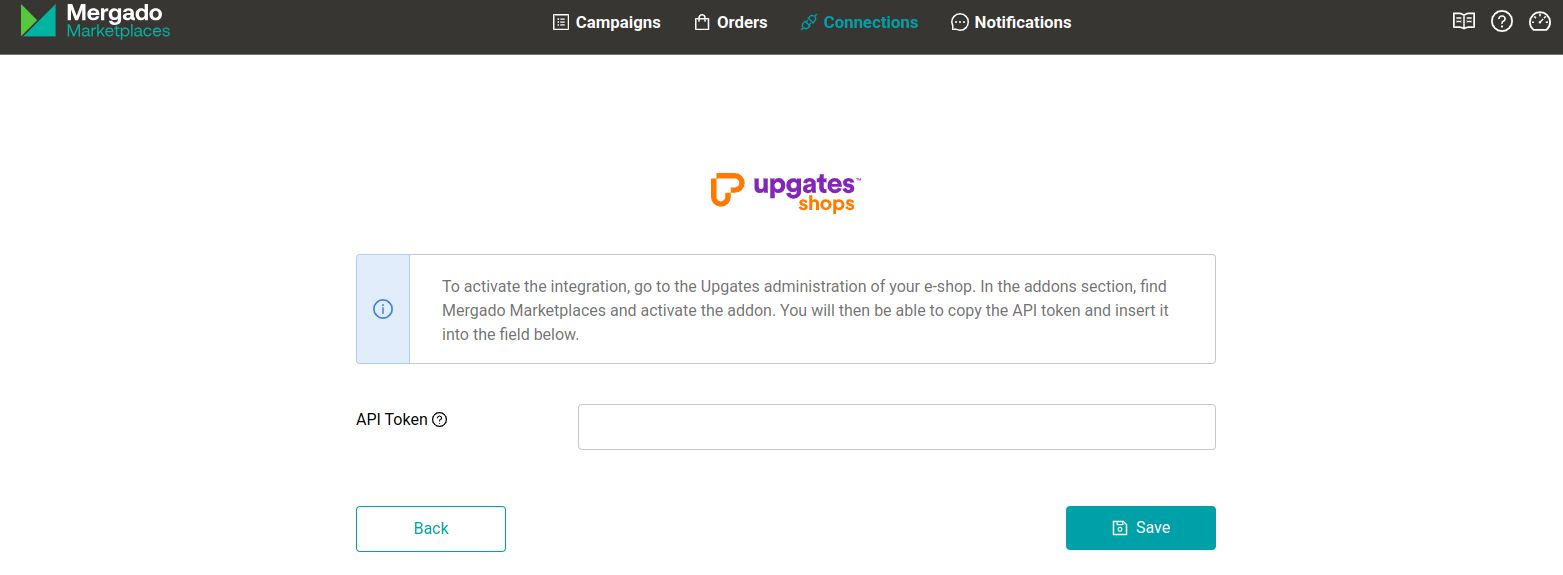
After activating the add-on in Upgates, further instructions will be displayed directly in Upgates. It is important to copy the API token, which can be found at the bottom of the page. You then insert this token in Mergado Marketplaces in the Connections section, in the Upgates connection detail, into the API Token field and click Save.
3. Setting up synchronization in Mergado Marketplaces
After a successful connection, a section for mapping Upgates language versions of your e-shop to marketplace sales channels will appear in the Upgates connection detail in Mergado Marketplaces. Think about which markets you will be selling on via Allegro and Kaufland, and prepare the corresponding language versions (Settings > Basic > Languages) and currency (Settings > Basic > Currencies) in your Upgates administration.
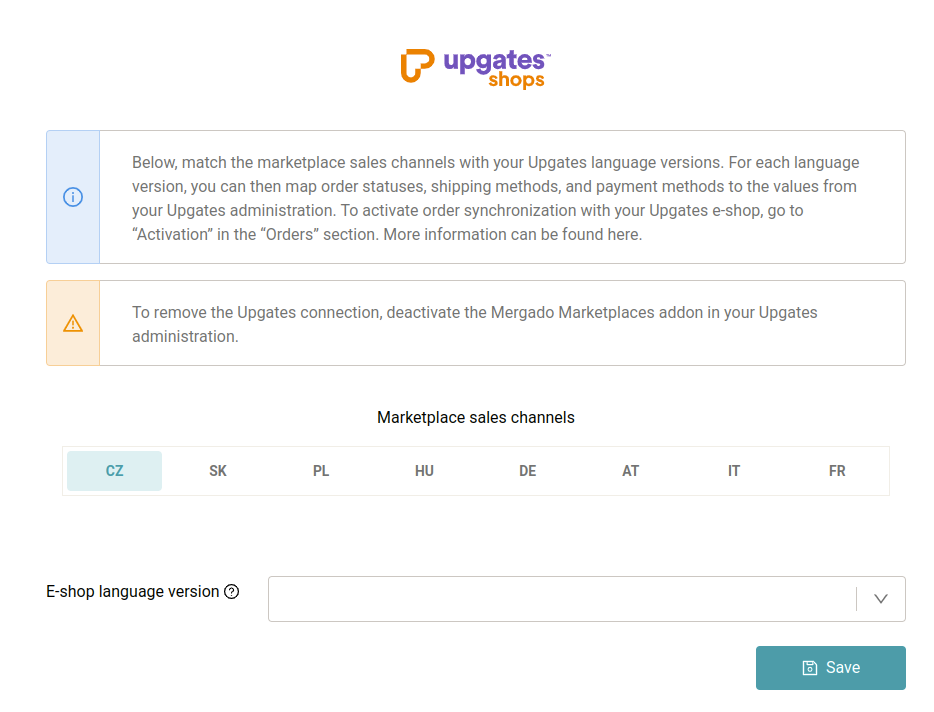
Once the language versions are set up, you can map the following for each market:
- Statuses from Mergado Marketplaces to your order statuses in Upgates
- If you do not map order statuses, new orders will be imported into Upgates with the status
Accepted, and further status changes will not be taken into account.
- If you do not map order statuses, new orders will be imported into Upgates with the status
- Payment and shipping methods to your values in Upgates
- In this section, payment and shipping method values are loaded dynamically based on incoming orders. It is therefore recommended to check this section regularly and map any new values that may appear.
- If payment and shipping methods are not mapped, we will send them to Upgates in the same format as received from the marketplace.
 Please pay attention to at least pairing language versions and order statuses. Without pairing them, order synchronization will not work ideally.
VAT rate
To create an order in Upgates, it is mandatory to specify the VAT rate for each order item. You can set the VAT rate in the settings of individual campaigns for both Allegro and Kaufland. If you have not filled in the VAT rate for your offers, the standard VAT rate for the given country will be used.
4. Activating orders
Once everything is set up, you can activate order synchronization for Upgates in the Orders > Activation section. For order synchronization to work correctly, orders must also be activated for at least one marketplace.
How can you tell that an order comes from a marketplace?
For each order, we sendMergado Marketplaces importas an internal note in the order detail in Upgates. In theAdvancedsection, you can find the marketplace order ID underExternal order number.