In this article, you will learn:
- Overview layout
- What the overview is used for
What is Overview page used for
The Overview in the Editor provides users with quick access to important information and the most important parts of the application.
You have created your first or another project and have arrived at the Overview page. What this page offers:
- Top right menu
- “i” icon
- Input and output overview
- Info panel
- Audit
- Overview of running applications
- Product range structure
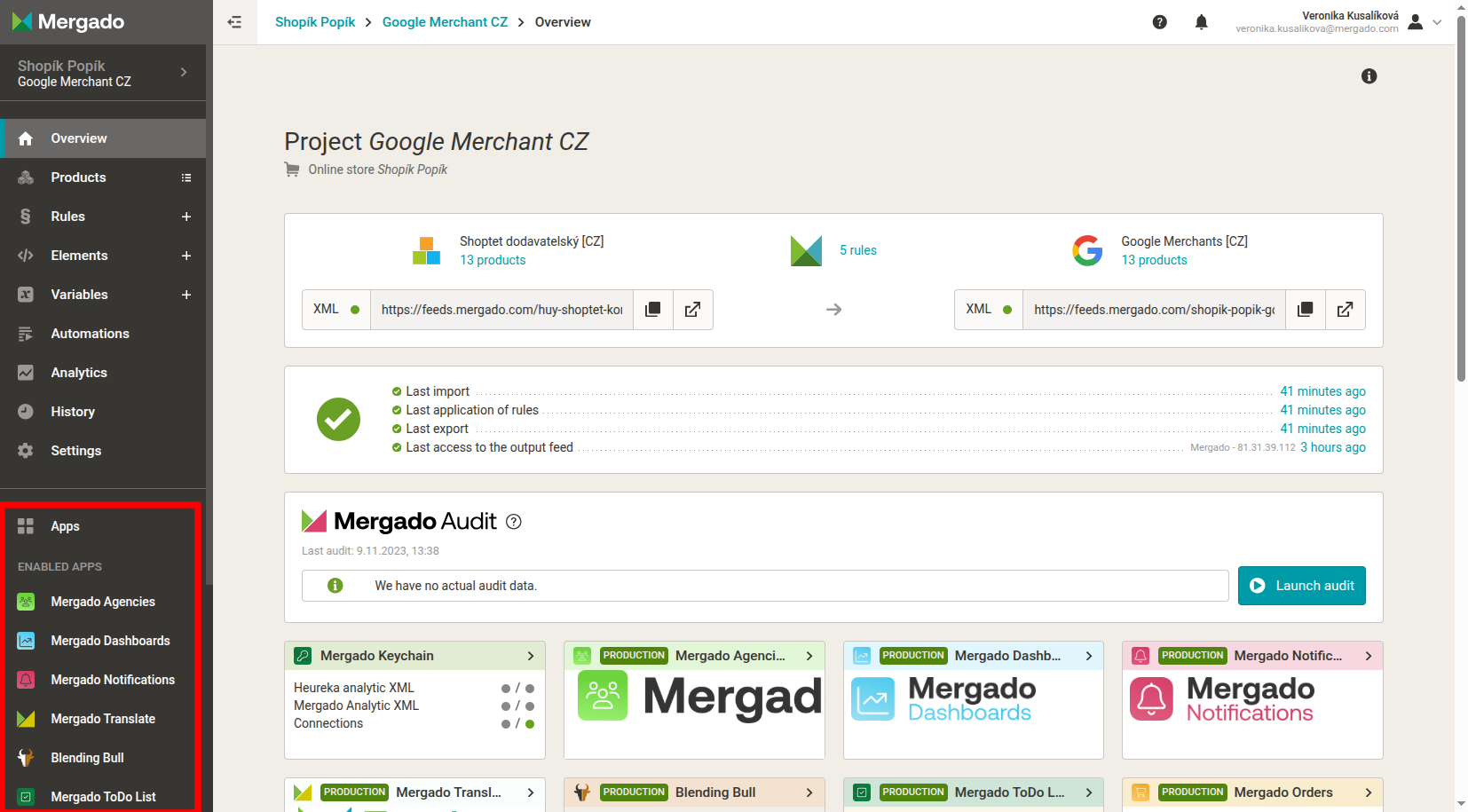
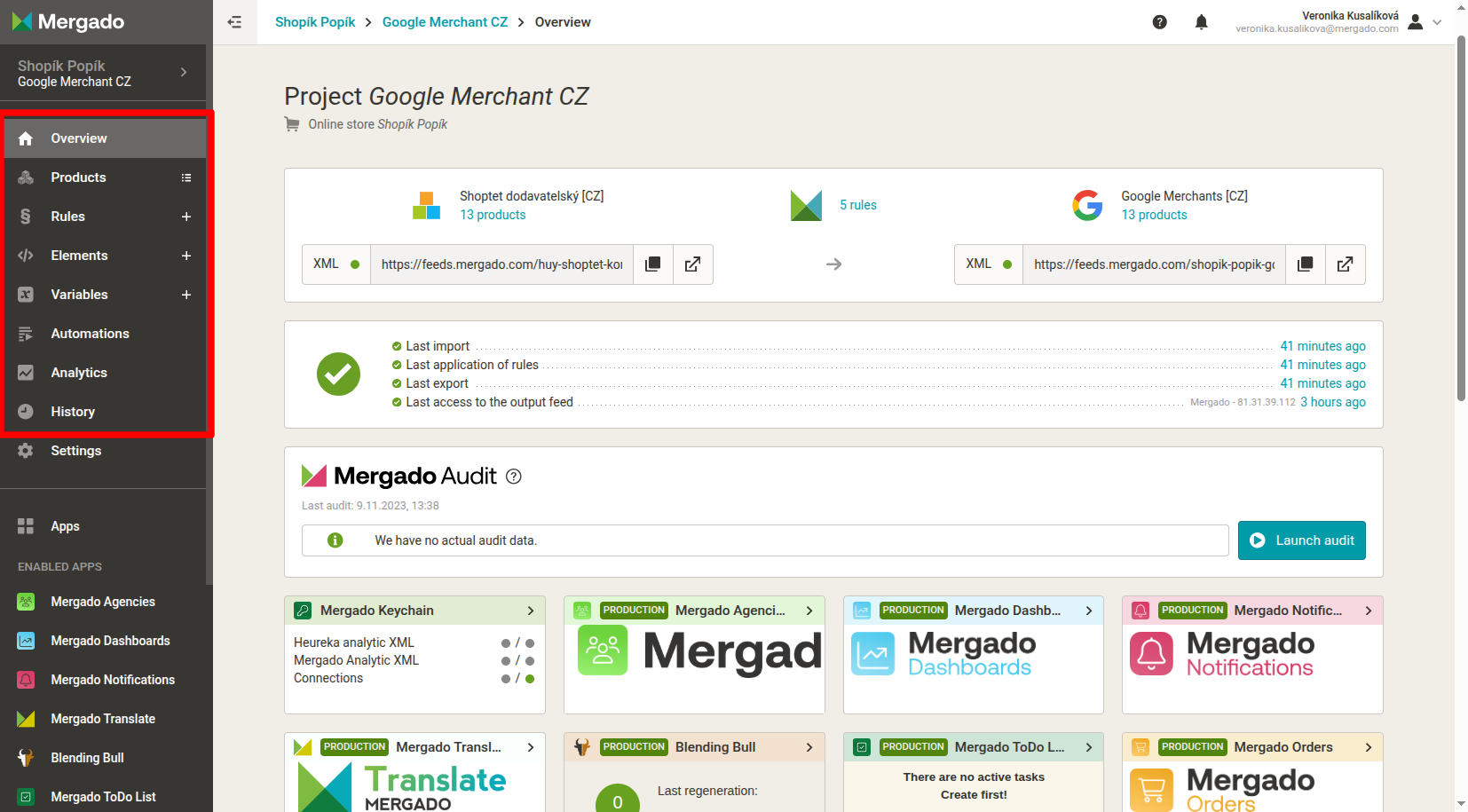
- Left menu
- Applications
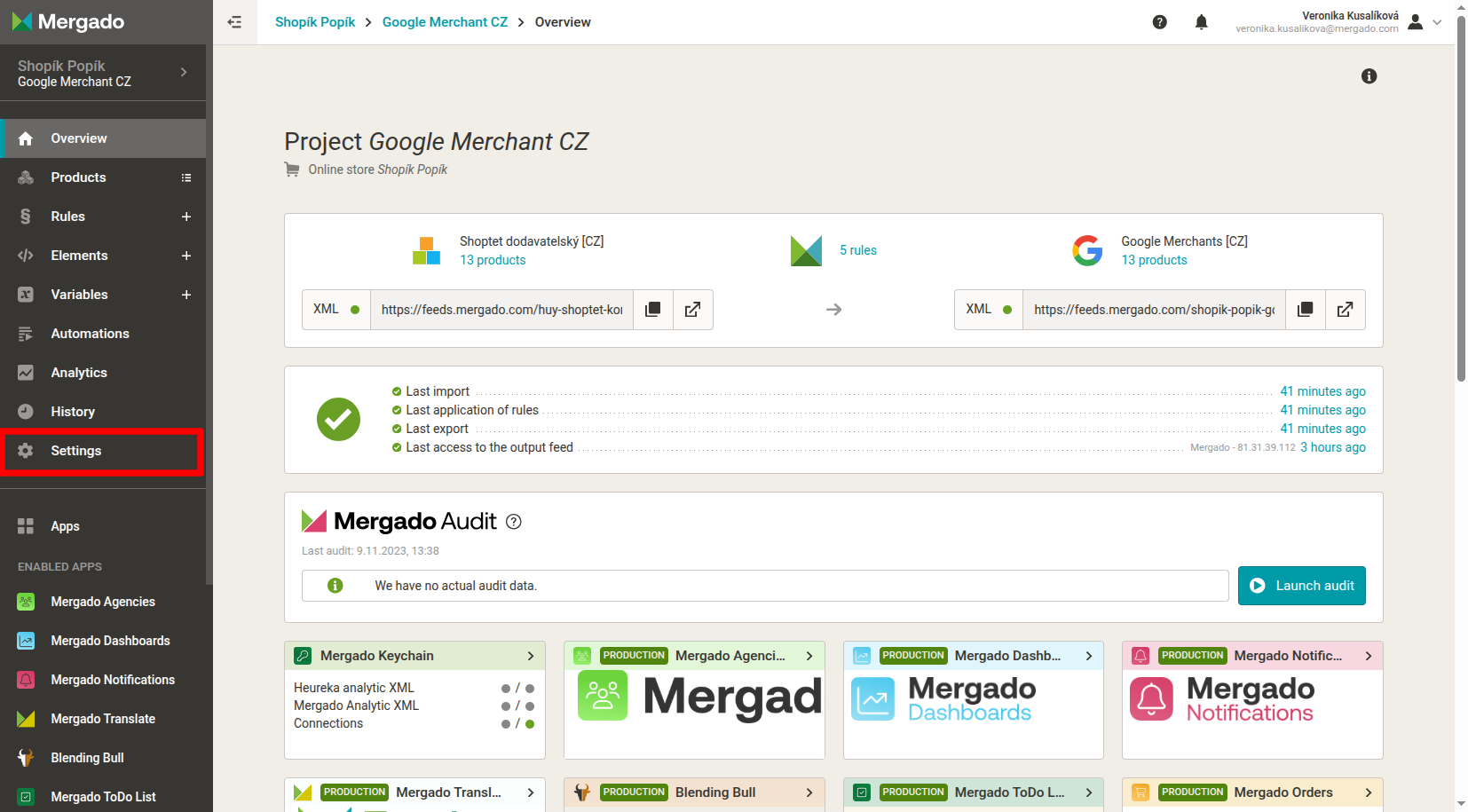
- Settings
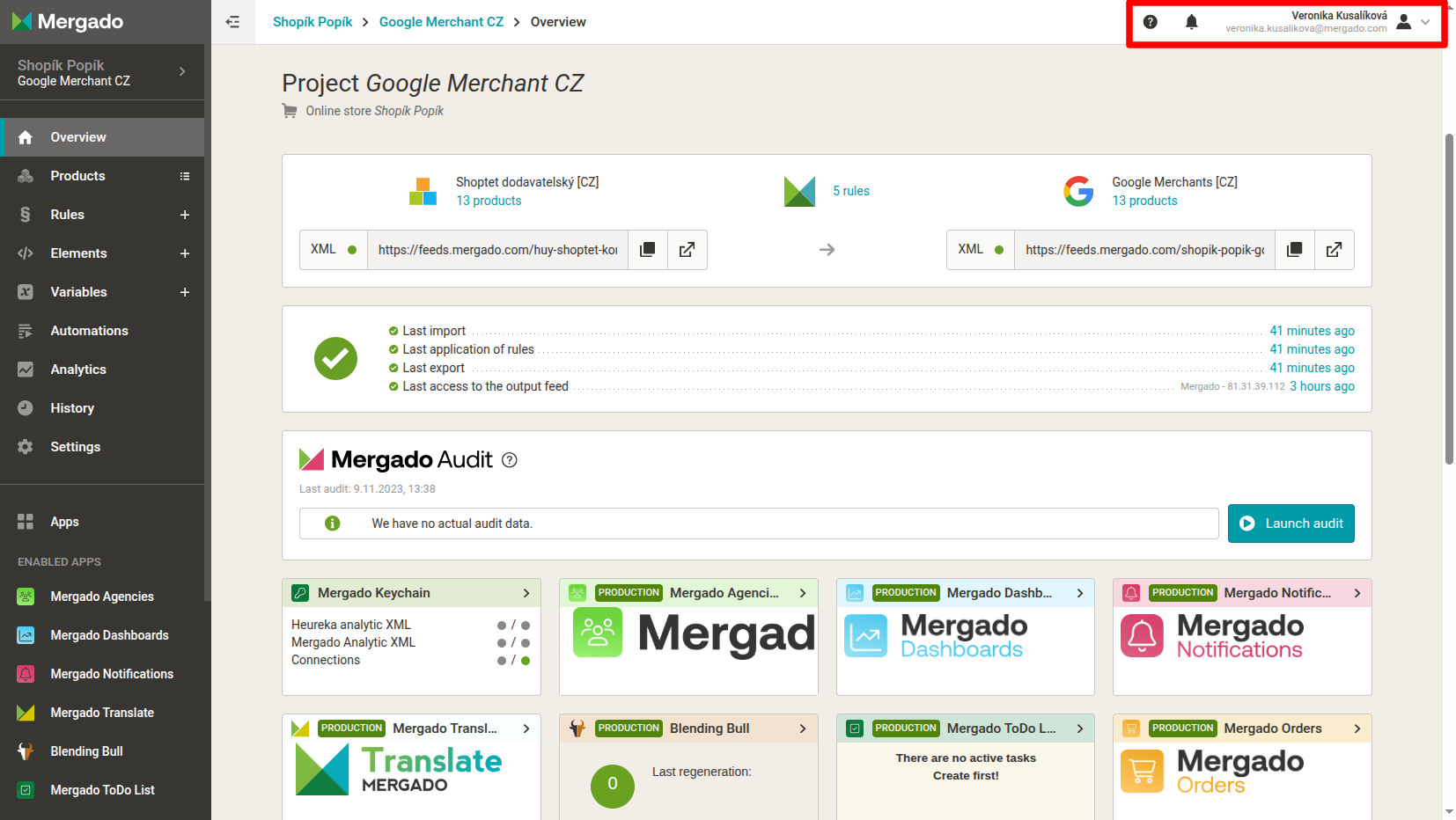
Right upper menu
In the help section, you will find useful tips, instructional videos, guides with information about Mergado, as well as messages and account settings.
“i” icon
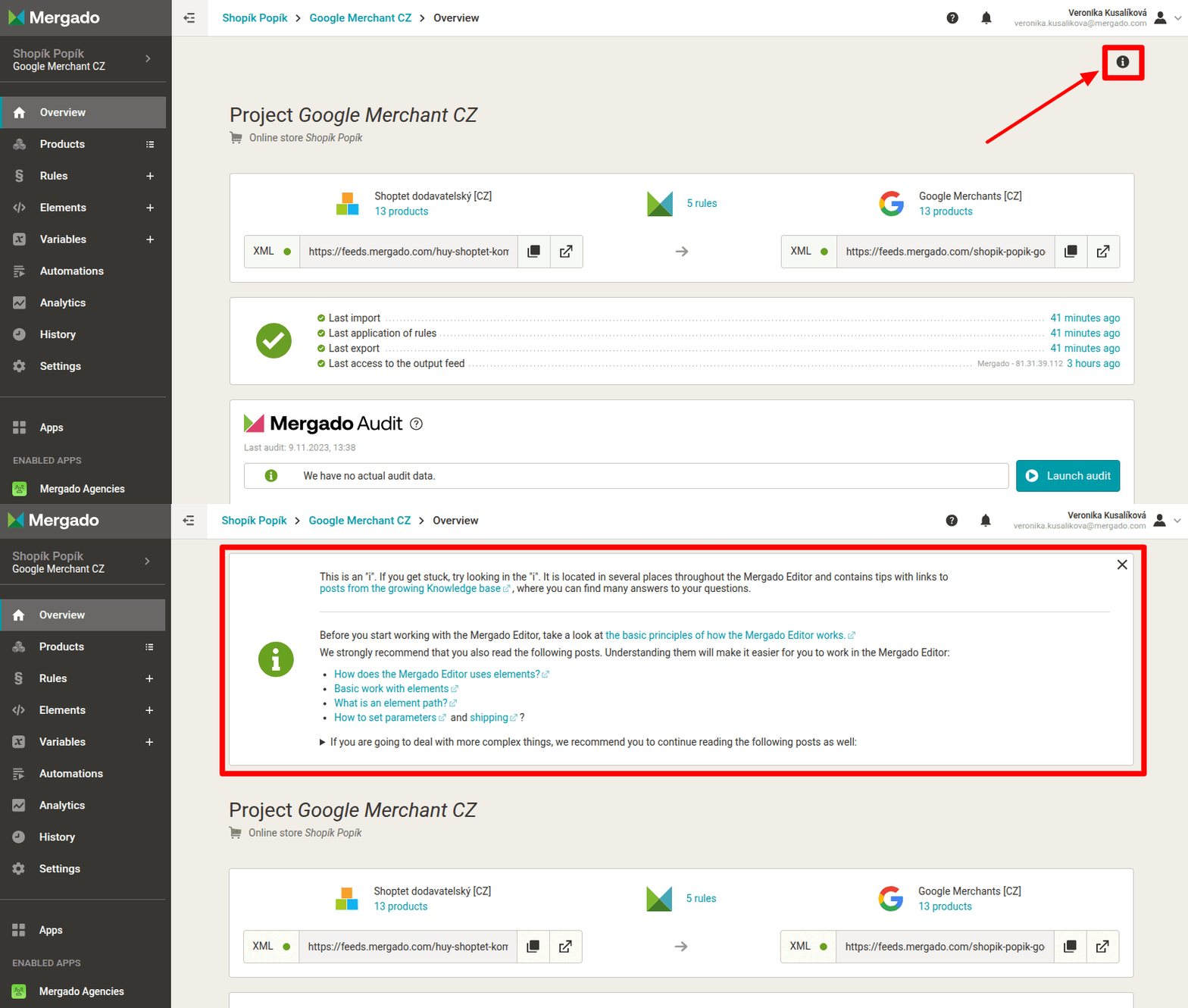
When you first launch Mergado, it offers you information and links to our forum in the bookmarks, where you can find help for specific parts of the application. You can alway come back to this information panel by clicking on the “i” icon.
Input and output overview
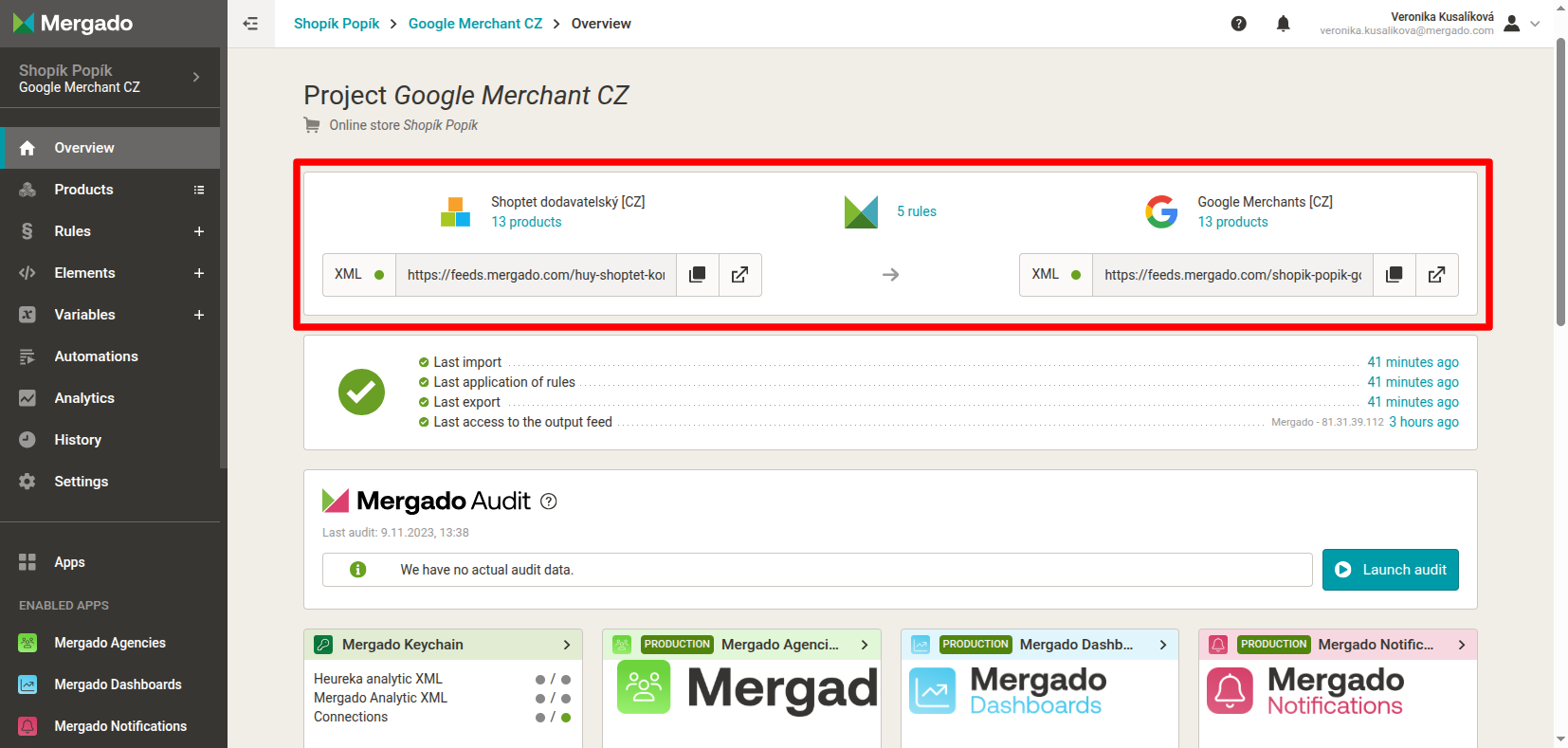
Shows how many products were in the input and how many you have in the output after applying the rules. You can also copy the URL address of the output feed for the recipients of your data (price comparison sites, marketplaces, etc.).
Info panel
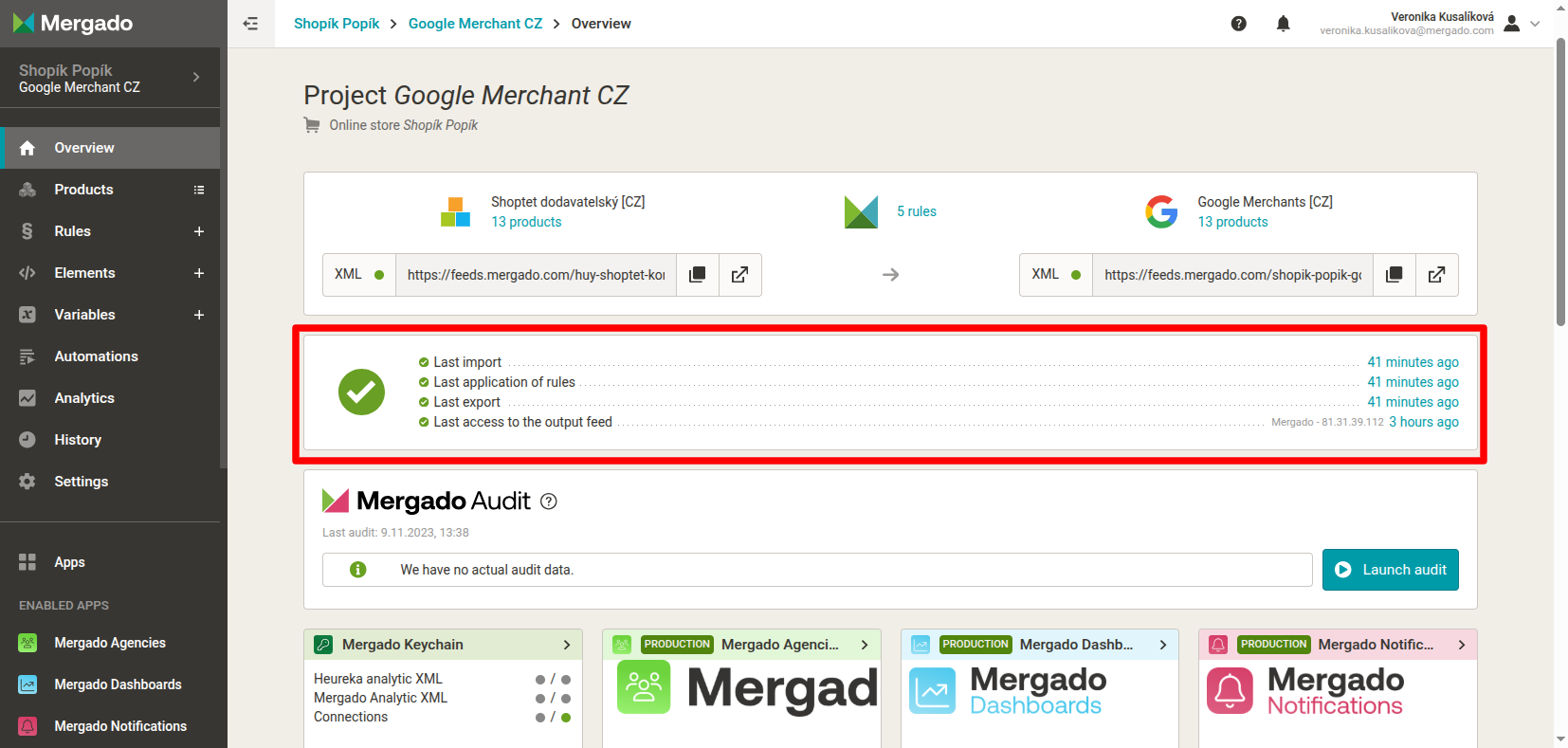
In this section, you will find information about your data updates, i.e., the last import, application of rules, export, or last access to the output feed.
Audit
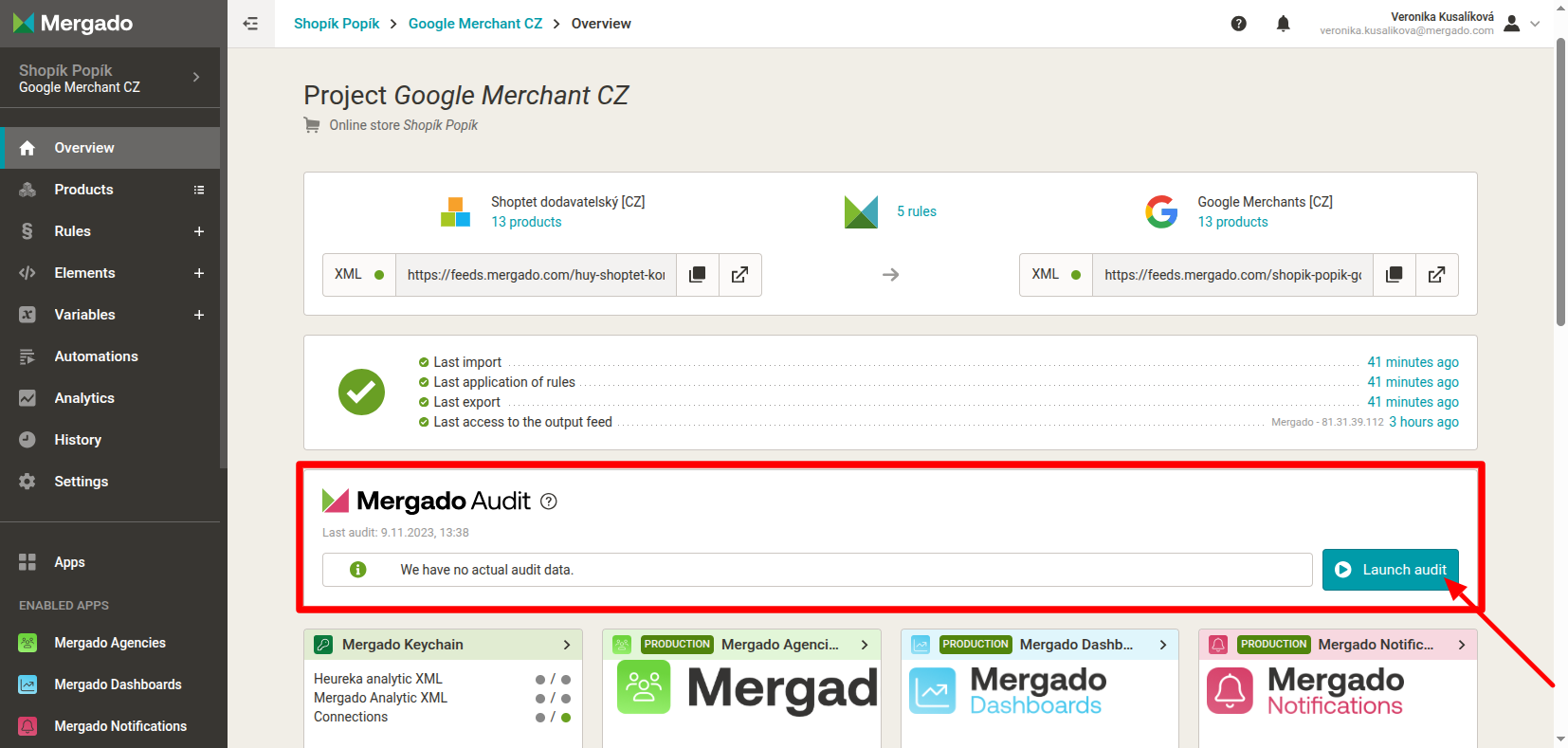
After creating a project, we recommend running Mergado Audit as soon as possible. This will allow you to find out what errors your feed contains. The results will be sent to your email.
Overview of running applications
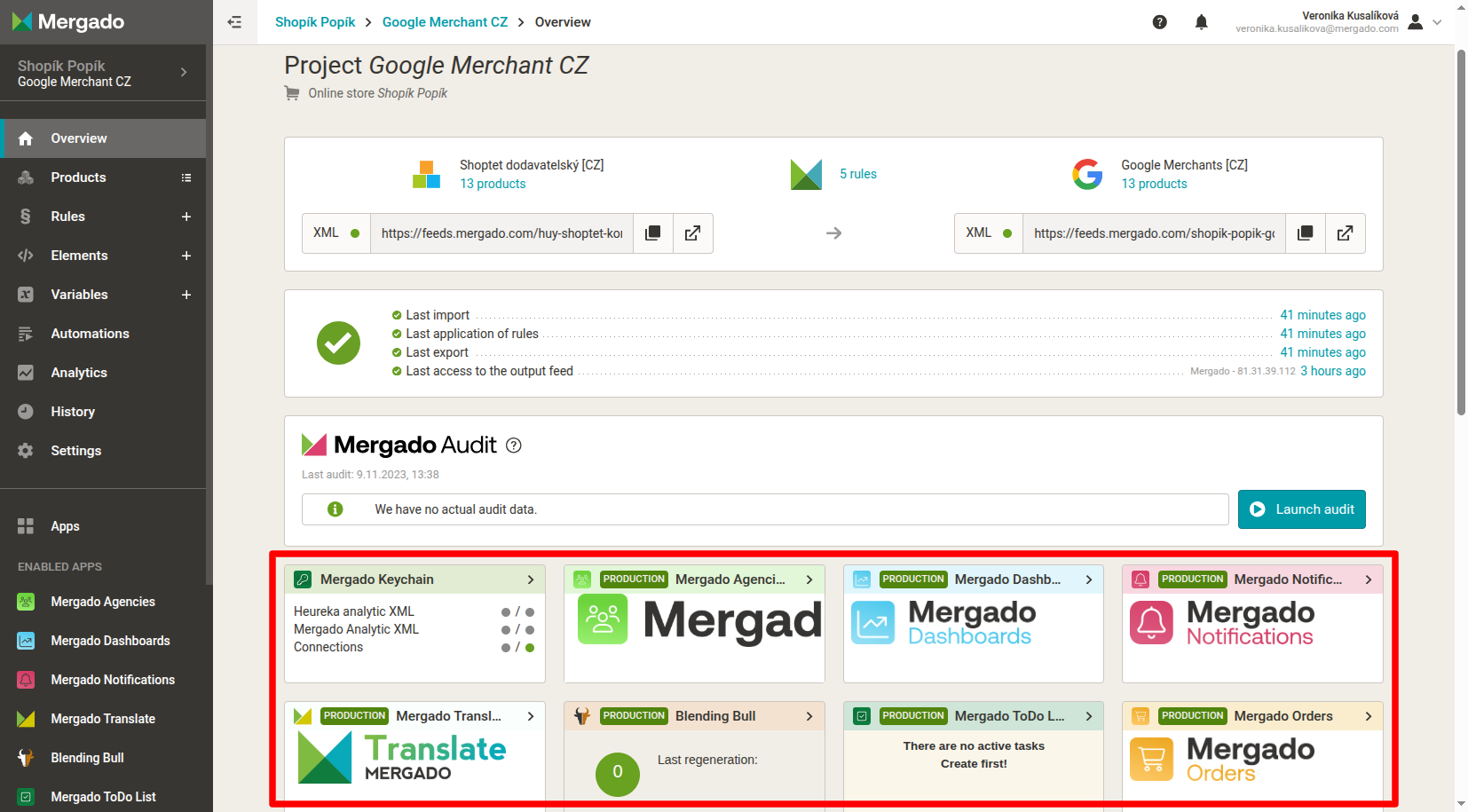
You can find key information about running applications from the Mergado Store in this overview.
Product range structure
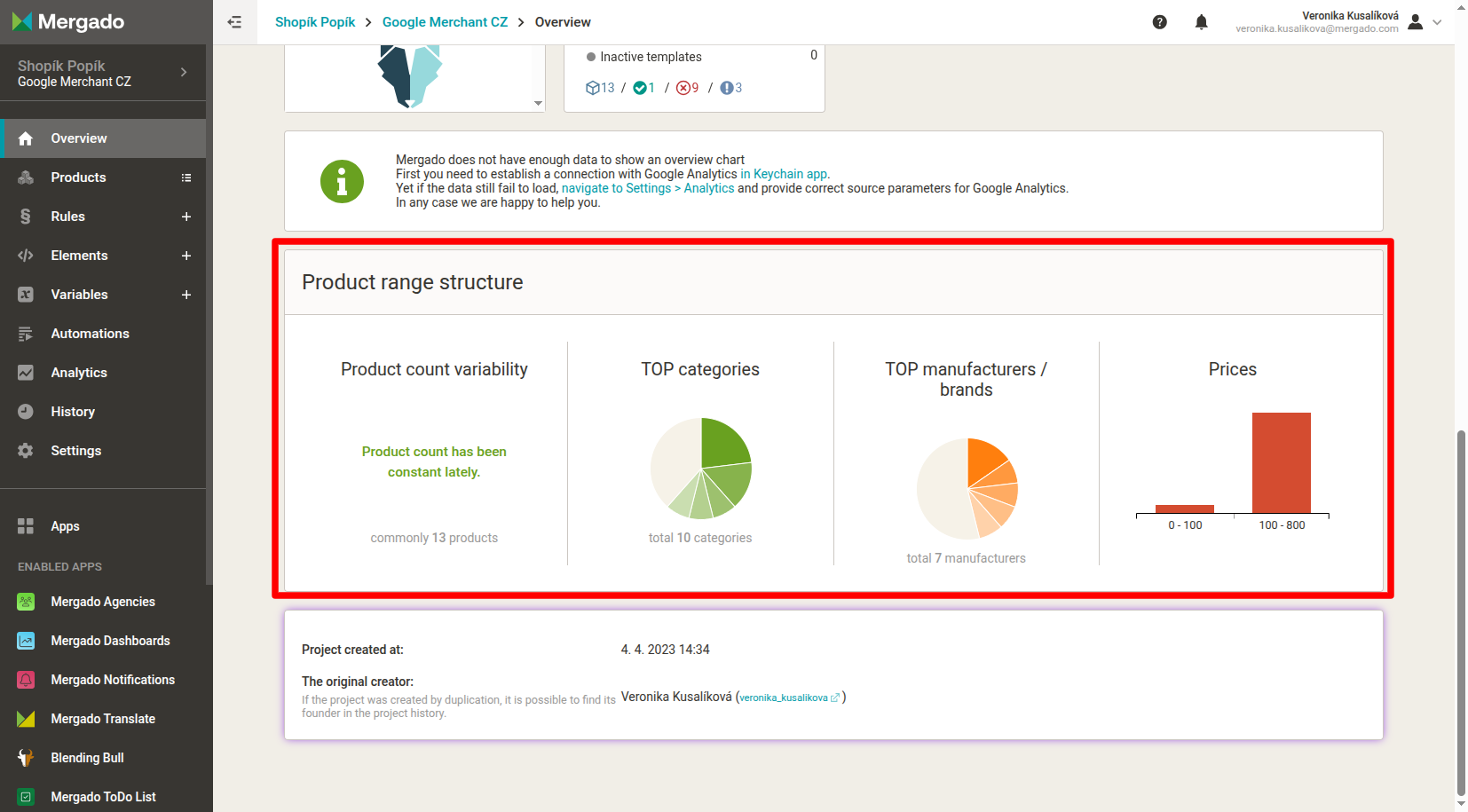
The product range structure provides you with basic information about the commercial effectiveness of your e-shop advertising. For it to work, you need to enter your Heureka or Google Analytics login details in Keychain.
Left menu
The left menu is used to navigate to other parts of the application and provides quick access to the main functions.
Settings
Here you can adjust the settings of your e-shop or project, or change permissions.
Applications
Here you can quickly access the applications that are running for your project or e-shop.