In Mergado, you can find duplicate products as follows:
-
On the Elements page, select the element containing duplicates, e.g.,
PRODUCTNAME,EAN, or another, and click on the list of values. -
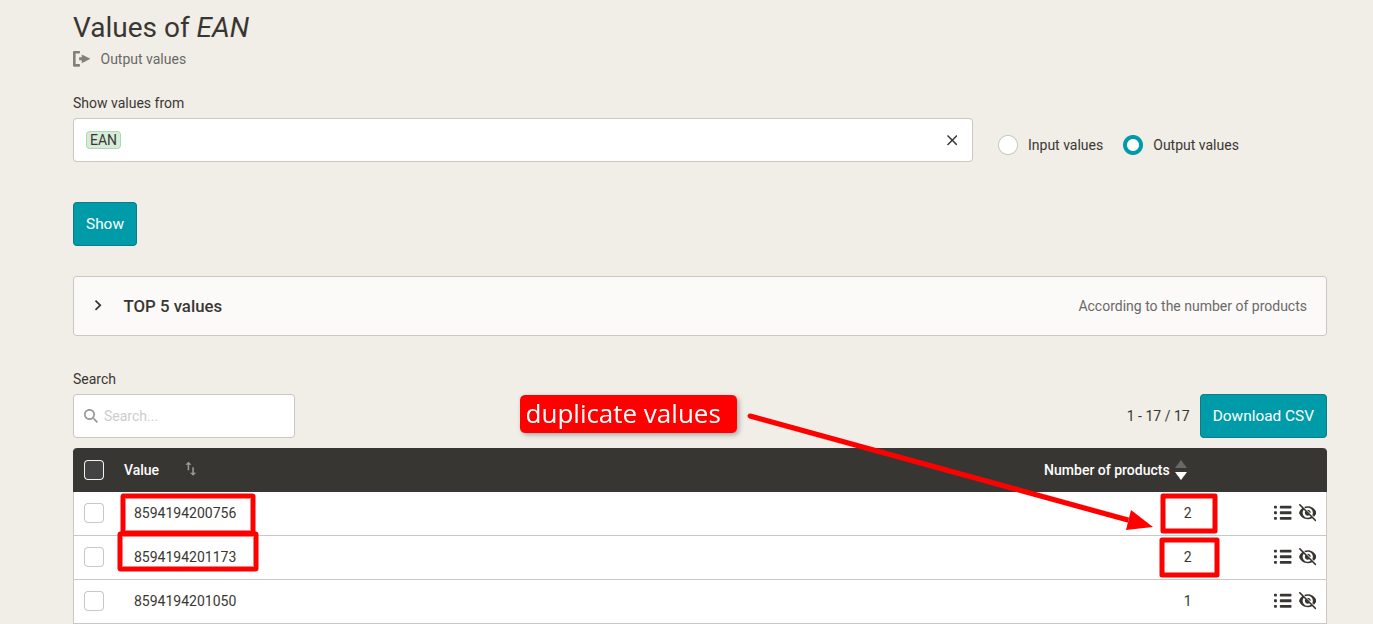
On the element values page, click twice on the Number of occurrences column header to sort the number of occurrences in descending order. If there are duplicate values in the element, they will have more than 1 occurrence.
Example of finding duplicate EAN codes:
What to do with the duplicates found?
If the intention is to completely remove such products from the feed, this is the easier option:
- On each line, there is an icon on the right side
 for the option to list products with a given value, which leads to the Products page with an automatically generated selection. If such a selection is suitable, it can be saved immediately. If there are a few duplicates, simply repeat the process for the other duplicate products and continue with step 5 below.
If there are many duplicate items and it is not desirable to create selections one by one (from individual rows), the best method is:
-
Export the values to CSV by clicking on Download CSV, then open in Excel/Calc, etc., and first sort the data by the count column with the number of occurrences, then the duplicate values will be nicely lined up in rows.
-
Select and copy the part of the content column with duplicate values to the clipboard.
-
In Mergado, on the Products page, create a query for the element in which we searched for duplicates (e.g.,
PRODUCTNAME,EAN, etc.) with the condition is included in the list and paste the rows from the clipboard into the value field. -
Save the query and then hide such products using the hide product rule.

If the intention is to remove only duplicates from the feed and keep one occurrence, this is a more laborious option:
- There is an icon on the right side of each row to list products with a given value, which leads to the Products page, where you can Download CSV with only these products.
- Next, open the downloaded CSV file in Excel/Calc, etc., and copy the identifiers (e.g.,
ITEM_ID) of the products you want to hide to a new sheet. More precisely, all rows in theITEM_IDcolumn except for one occurrence - we will leave such a product in the output feed. - Steps 1 and 2 must be repeated for all duplicate products found on the Elements page.
- This will create a list of product “ids” on a new sheet, which we will then hide. Simply select all rows and copy them to the clipboard.
- In Mergado, on the Products page, create a query for the element corresponding to our values, e.g.
ITEM_IDwith the condition “is included in the list” and paste the rows from the clipboard into the value field. - Save the query and then hide such products using the hide product rule.