Have you turned on the Mergado Notification app and are wondering how to create a connection to Rocket.chat? 
In this guide, we’ll show you how to do it. 
Creating a webhook
First of all, you will need to create a so-called webhook. You will create this URL in the Rocket.chat administration.
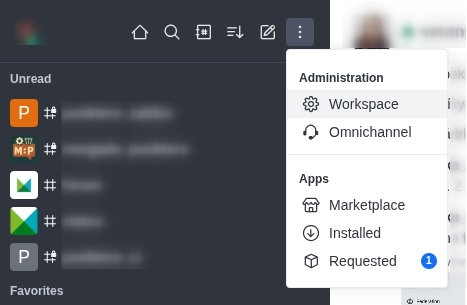
Please note that you must have admin permissions to access the administration panel.
Proceed as follows:
- In your workspace, go to Administration > Workspace > Integrations.
- Click New at the top right corner.
- Switch to the Incoming tab.
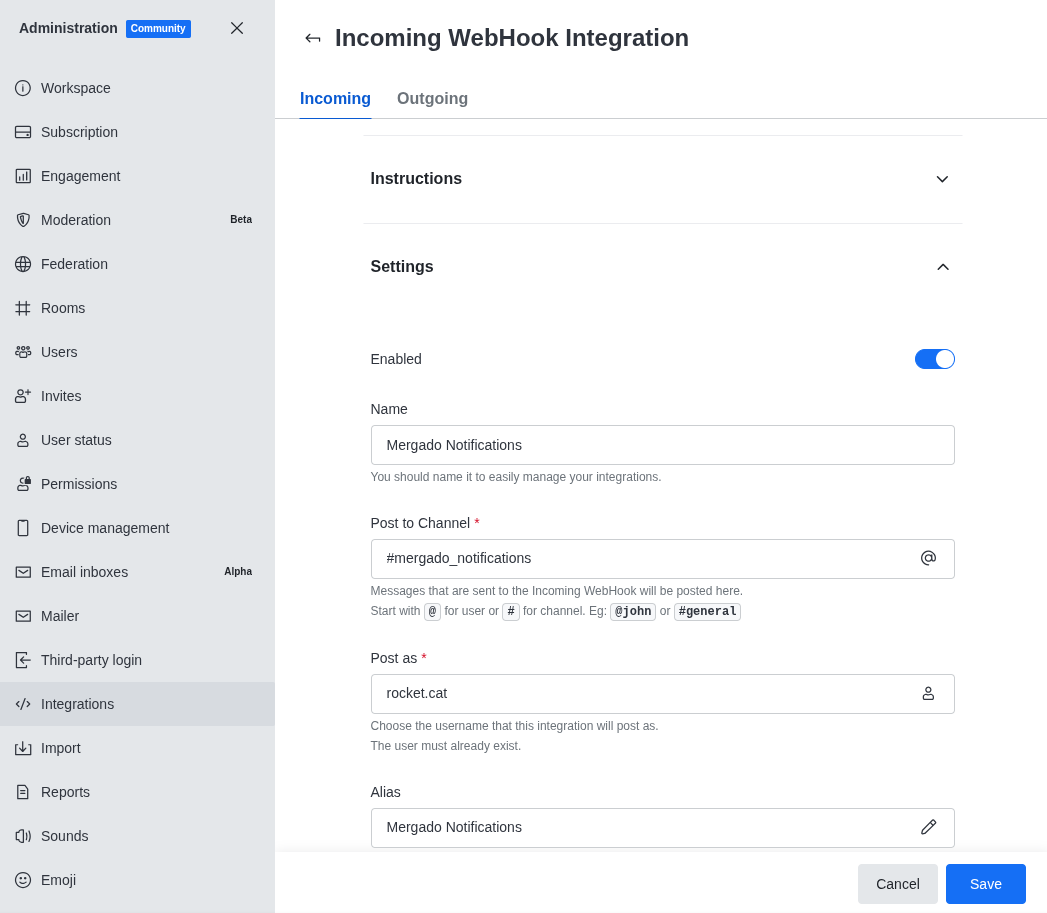
- Select the Enabled toggle option under the Settings tab.
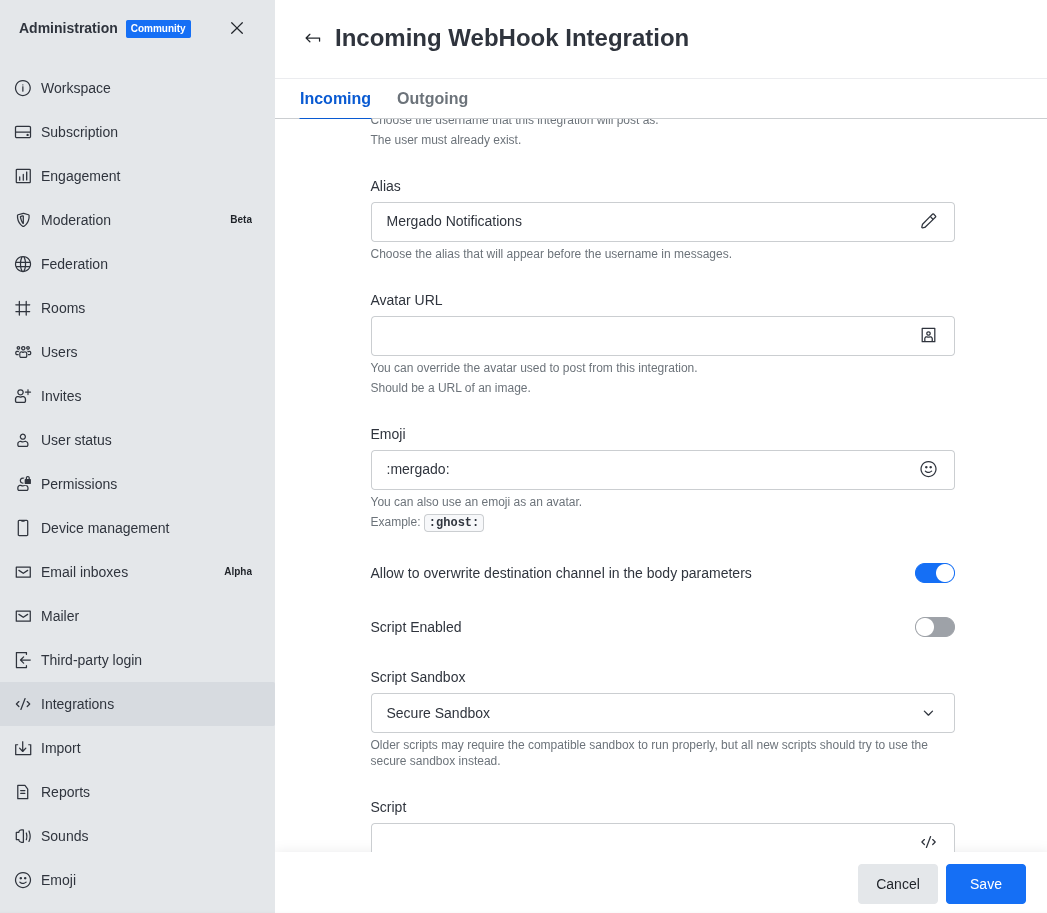
Now fill out the form as follows:
Name- the name of the webhook - e.g. “Mergado Notifications”Post as- an existing user whose name will be used to send notifications. If you do not yet have such a universal user, set it up here.Post to Channel- the default channel where notifications will be sent - the user specified inPost asmust be added to this channel, otherwise it will not work.Alias- the “name” under which notifications will be displayed (if not specified, it will be the name of your universal user, see “Post as”).Avatar URL- you can change the avatar logo, but you don’t have to.Emoji- you can enter any emoji in Rocket there.- Check
Allow to overwrite destination channel in the body parameters - Uncheck
Script Enabled
After clicking Save, the following page will appear, where you can copy the created Webhook URL.
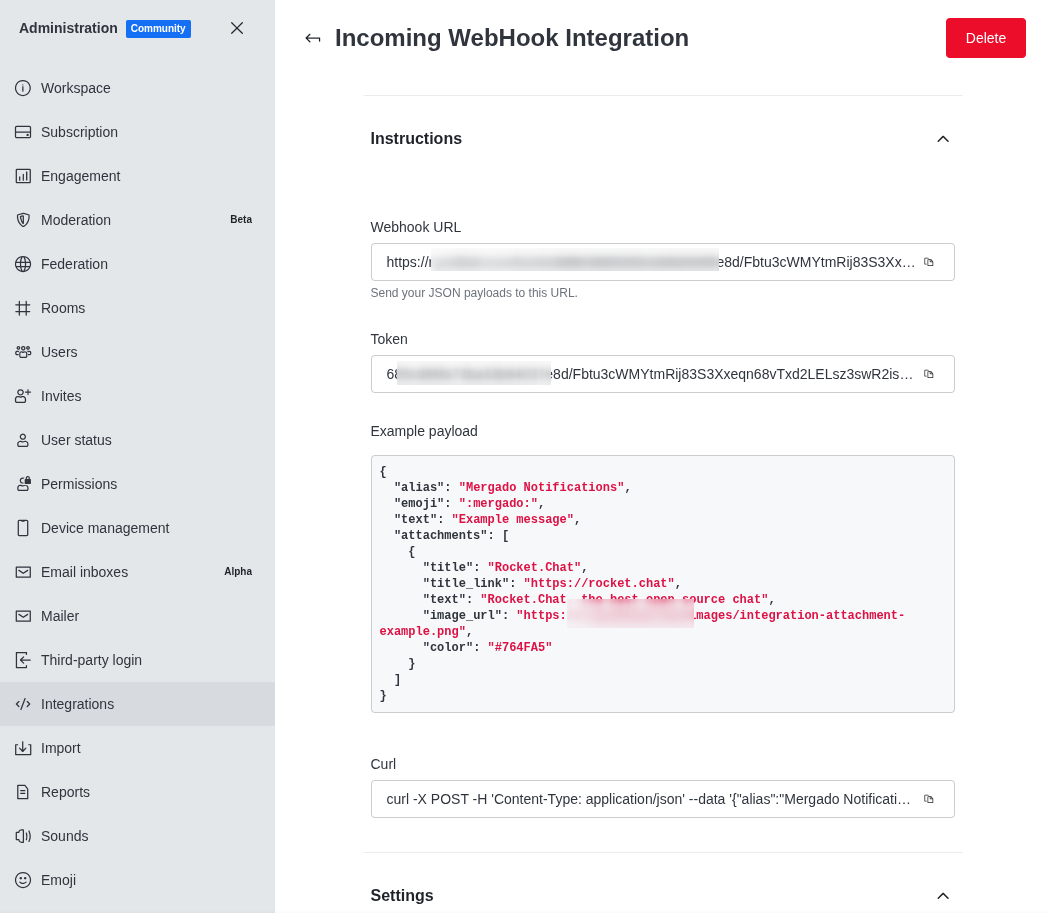
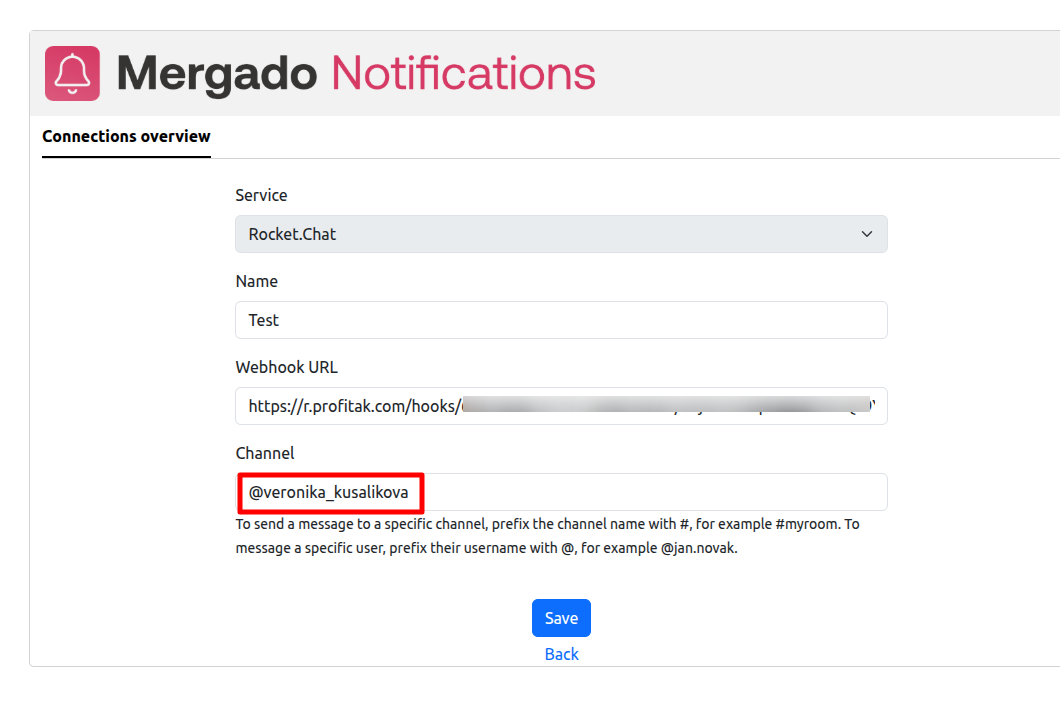
 Enter the Webhook address you obtained into the Mergado Notifications application.
Channel Selection
It’s up to you where you want to send notifications - whether it’s just to a private message to yourself or to a channel you share with someone.
If it’s a private notification to a user, use @username, as specified in Rocket. If you want to send notifications to a channel, use #channelname.
Please note that if it’s a private channel that doesn’t have a default user (
post as), notifications won’t work. You need to invite this intermediary user to the channel so that they can send notifications to the channel.